
Tip & Trick
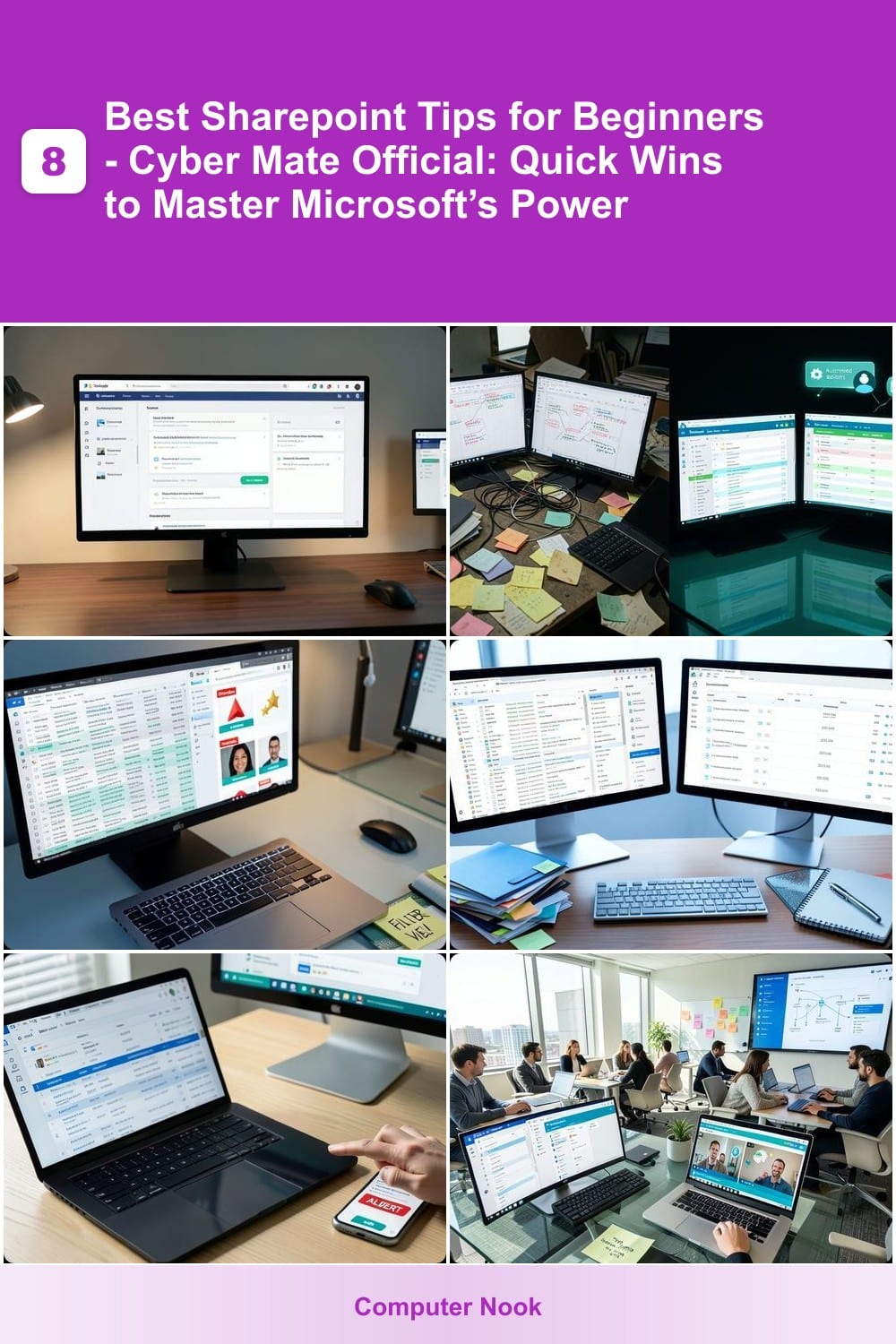
Microsoft SharePoint can feel overwhelming for beginners, but mastering these eight essential tips will transform how you collaborate and automate workflows. These quick wins focus on practical, beginner-friendly strategies to boost productivity in Microsoft’s Power Platform without overwhelming technical jargon.
How to Create a Modern SharePoint Site
Want a sleek, professional SharePoint site without touching a line of code? The modern SharePoint site template makes it easier than ever—just pick a design, customize it in minutes, and you’re ready to collaborate. Unlike outdated classic sites, modern sites feature a clean layout, built-in navigation, and mobile responsiveness out of the box.
Start by clicking "Create site" in the SharePoint home, then choose a template like "Team site" (for projects) or "Communication site" (for company news). Add web parts (like news, documents, or lists) by dragging and dropping, and use the modern navigation menu to organize content intuitively. The hero web part lets you showcase key updates or announcements front and center, while tiles provide quick access to frequently used tools.
Perfect for small teams, freelancers, or personal organization—whether you’re tracking project milestones, sharing resources, or planning events. No design skills needed! ✨
Mastering SharePoint Lists for Data Organization
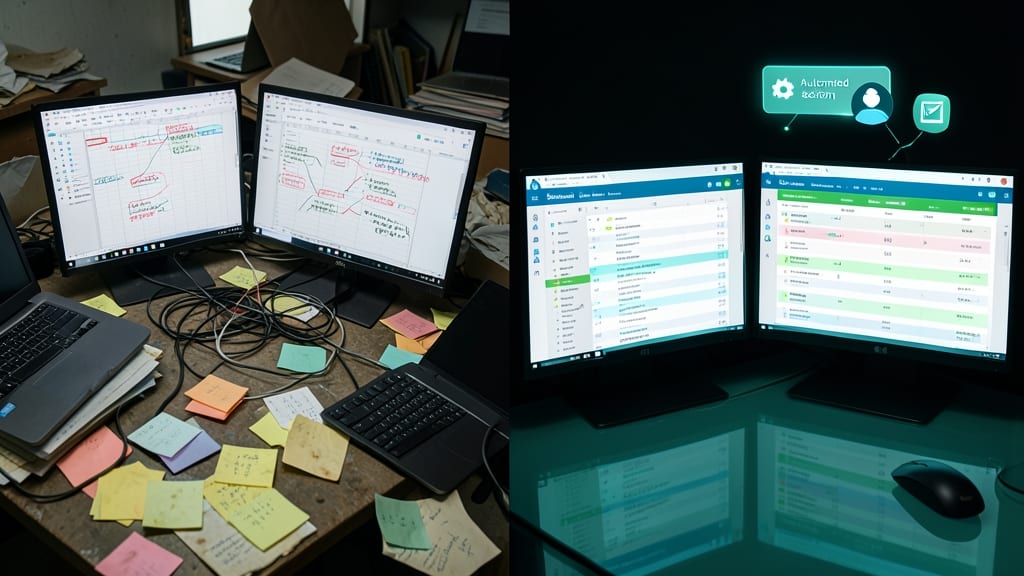
Say goodbye to spreadsheet chaos—SharePoint Lists offer a collaborative, real-time way to organize tasks, contacts, or inventory with built-in features most beginners overlook. Unlike static spreadsheets, SharePoint Lists let you track changes, assign owners, and even trigger automated actions when data updates.
Start with a custom list (like "Project Tasks" or "Client Contacts") and add columns for details (e.g., "Due Date," "Status," or "Assigned To"). Use choice fields (dropdowns) to standardize data (e.g., "Priority: Low/Medium/High"), and enable versioning to restore previous entries if needed. The best part? Mobile access means you can update lists on the go—no more waiting to sync with a desktop spreadsheet.
Perfect for small teams replacing Excel chaos or solo users managing inventory, client records, or personal projects. Try it once, and you’ll never look back at spreadsheets the same way again! 💻
Customizing SharePoint Views for Efficiency
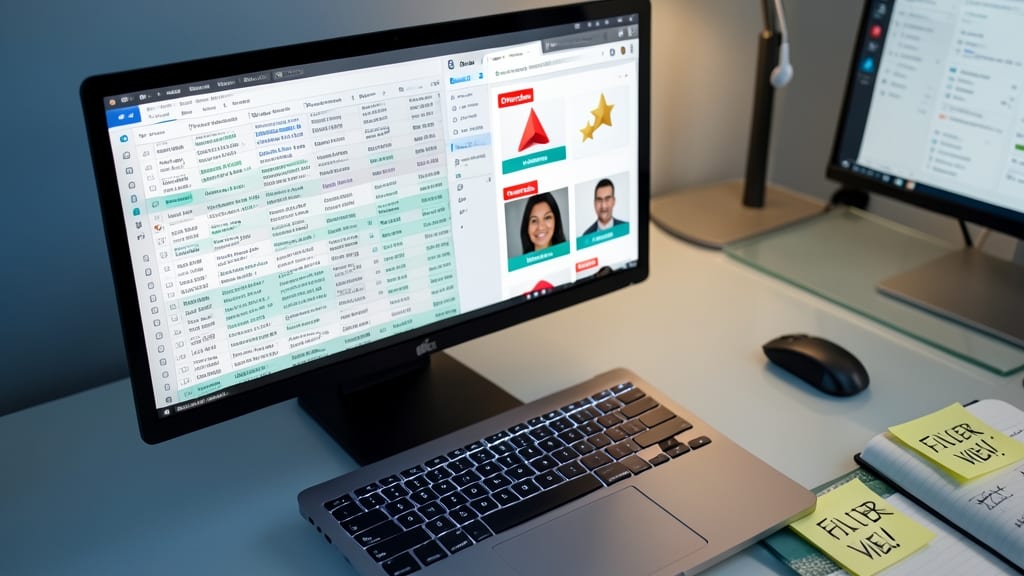
Drowning in endless rows of data in SharePoint lists? Custom views let you focus only on what’s relevant—whether it’s overdue tasks, high-priority projects, or client contacts. With just a few clicks, you can transform clutter into clarity, saving hours of manual searching.
Start by filtering to show only active tasks (Status = "In Progress"), then sort by due date (ascending) to tackle urgent items first. Add grouping by department or project name to visually organize data. SharePoint’s default views (All Items, Today, Me) are a great starting point, but public views let you save and share personalized layouts with your team.
Perfect for managers juggling multiple projects or employees who need quick access to their specific tasks. Once mastered, you’ll wonder how you ever worked without it! ✨
Using SharePoint Libraries for Document Management
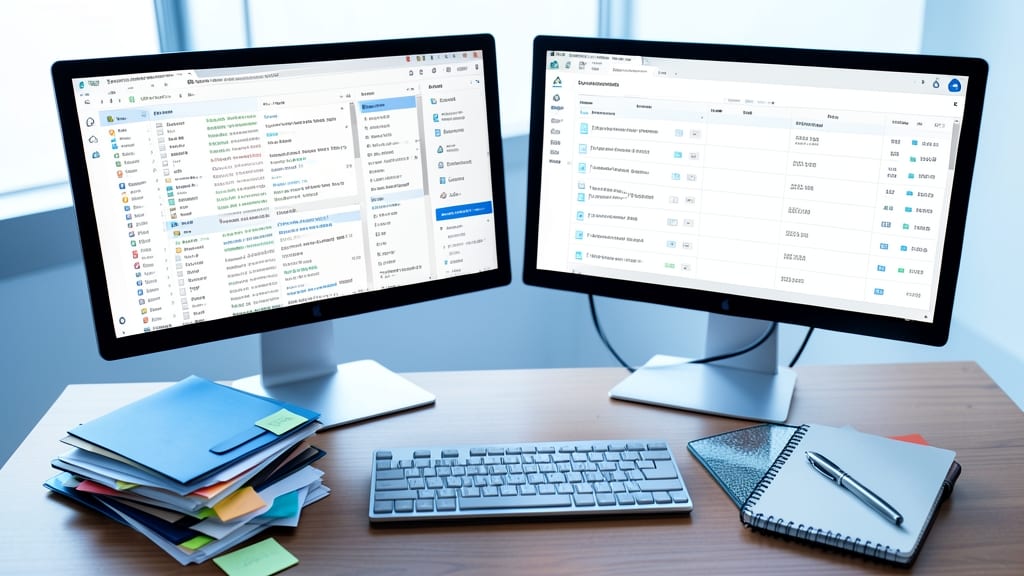
Tired of digging through email chains or local folders to find the right file? SharePoint Document Libraries replace the chaos with a centralized, searchable hub where every file has a home—and a history.
Start by uploading files directly from your desktop, then enable versioning (up to 500 versions per file) to track changes without losing work. Use metadata columns (like "Project," "Owner," or "Status") to organize files like a pro, and share links with permission levels (view, edit, or comment) to keep sensitive docs secure. The preview pane lets you check files without downloading, while co-authoring lets teams edit Word/Excel files simultaneously.
This is your go-to for teams ditching email attachments or scattered drives—especially if you work with large files (up to 250GB per library) or need audit trails. 💻
Setting Up SharePoint Alerts for Real-Time Updates

Tired of missing critical updates buried in SharePoint’s endless lists? SharePoint Alerts deliver instant email or mobile notifications when files change, comments appear, or tasks get assigned—so you never have to "check back later" again.
Setting up alerts takes just three clicks: navigate to any list, library, or item, click the gear icon, select Alert Me, and choose your notification frequency (immediate, daily, or weekly). You can even customize alerts for specific columns—like tracking only high-priority task updates. The best part? Alerts sync across desktop, mobile, and email, ensuring you’re always in the loop without manual refreshes.
This is a game-changer for project managers, sales teams, or anyone juggling multiple SharePoint sites. Set it up once, and let SharePoint work for you. ✨
Collaborating with SharePoint Teams and Channels

If your team is spread across locations—or even just across time zones—integrating SharePoint with Microsoft Teams turns disjointed communication into a unified powerhouse. The two tools are designed to work together, but many beginners miss how to sync them for maximum efficiency.
Start by creating a Teams channel tied to your SharePoint site—this automatically links files, conversations, and tasks in one place. Use the Files tab in Teams to access SharePoint documents directly, while tabs like "Planner" or "Tasks" pull data from SharePoint lists into your channel for real-time updates. For remote teams, this means no more digging through emails or separate apps—just a single hub where discussions, files, and deadlines live together.
This setup is ideal for hybrid or remote teams managing projects, client work, or internal processes. Whether you're tracking marketing campaigns or HR onboarding, the combo keeps everyone aligned without the back-and-forth of scattered tools. ✨
Basic SharePoint Workflow Automation with Power Automate
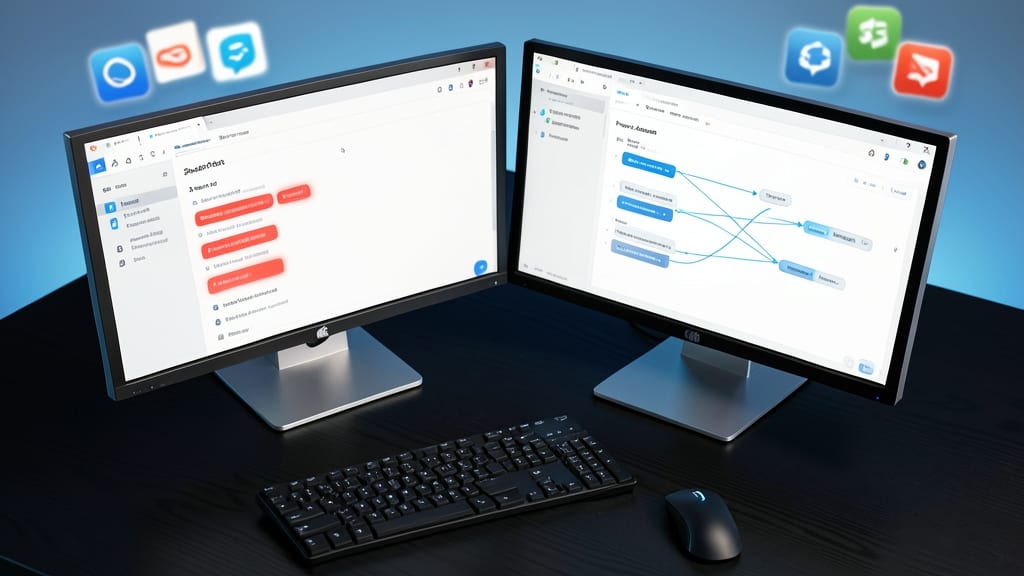
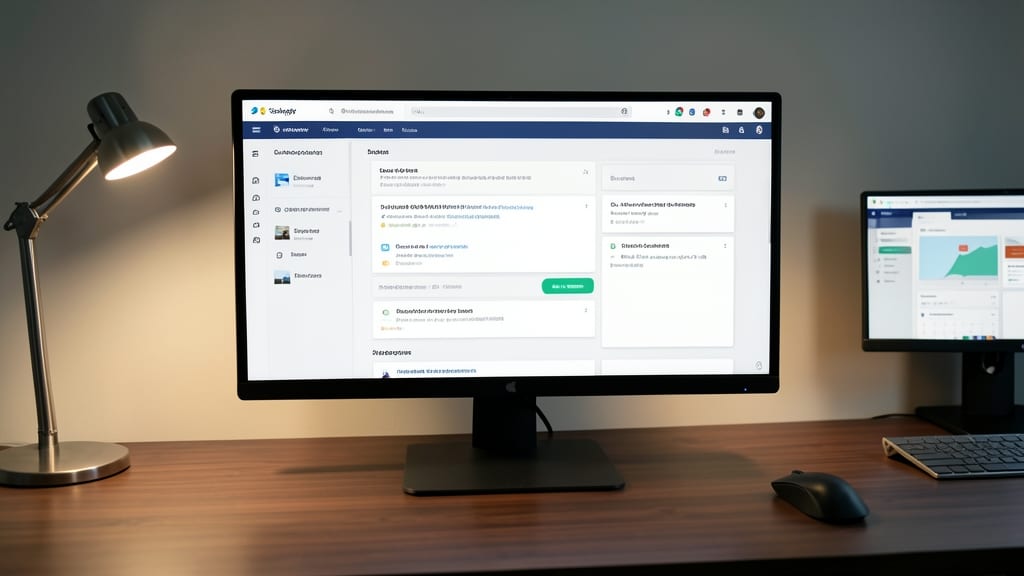
Tired of manually chasing down approvals or chasing team members for updates? Power Automate lets you automate repetitive tasks in SharePoint with just a few clicks—no coding required. This no-code tool connects to SharePoint, Outlook, and other Microsoft apps to create custom workflows that save hours every week.
Start with a simple "When an item is created" trigger in SharePoint, then add steps like sending an approval email or updating a task status. Pre-built templates handle common scenarios like document approvals, notification alerts, or data synchronization across apps. The intuitive drag-and-drop builder makes it easy to test and refine your flows without IT support.
Perfect for managers, project leads, or anyone drowning in manual tasks—try automating a single workflow (like expense reports) to see immediate time savings. ⚡
Securing SharePoint Sites with Permissions
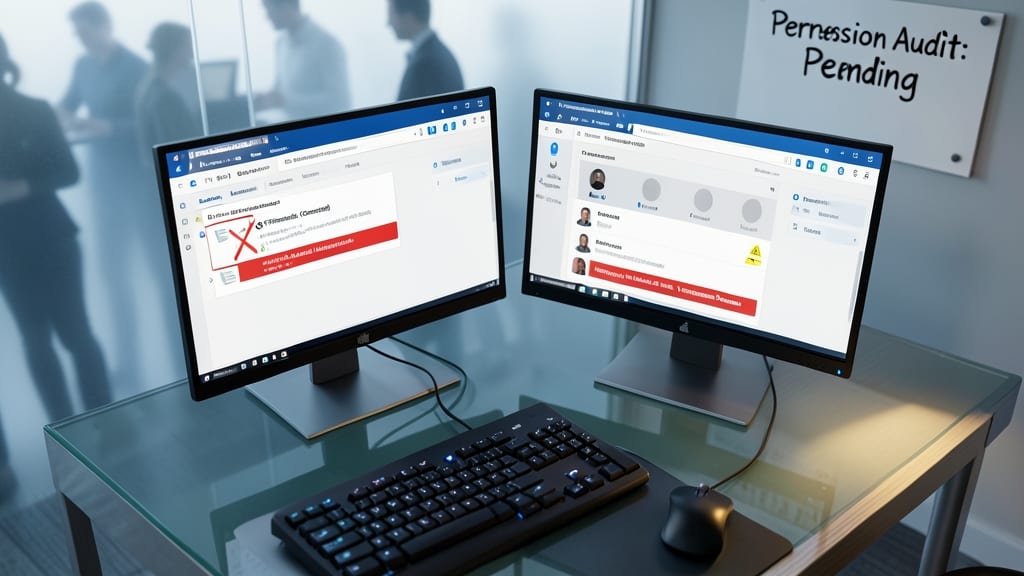
Accidental data leaks happen when even one team member has access to the wrong files—so SharePoint’s permission settings become your first line of defense. Unlike other tips that focus on features, this one ensures your sensitive documents stay secure by default, not just by luck.
Start by assigning three core roles: Viewers (read-only), Editors (full access), and Owners (full control + permissions). Use SharePoint Groups to manage permissions at scale—assigning a group to a folder instantly applies rules to all members. For extra security, enable versioning and audit logs to track who accessed or modified files, and restrict external sharing with guest link policies (e.g., require sign-in or set expiration dates).
This is your go-to tip for HR teams, finance departments, or any group handling confidential data. A few clicks now can prevent costly mistakes later—like that one time a client file got emailed to the wrong contact. 🔧