
Software
Struggling to stay organized and collaborate on group projects? Microsoft Teams offers powerful tools designed specifically to streamline student workflows, enhance communication, and improve academic outcomes—all for free with an educational account.
Seamless Class Project Organization with Channels
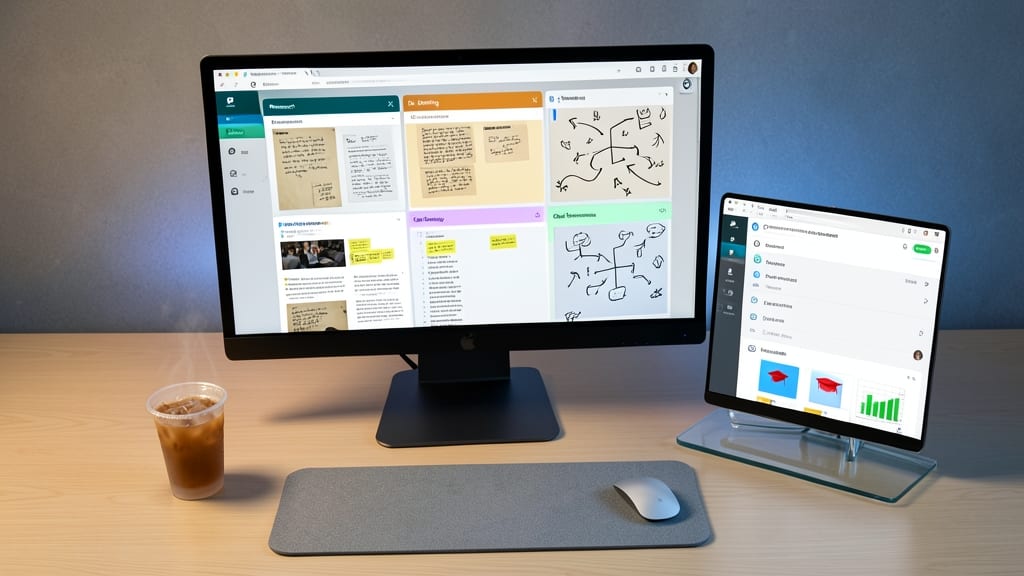
Drowning in a single group chat where research notes, drafts, and final submissions get mixed together? Microsoft Teams’ Channels feature turns that mess into a structured, phase-based workspace—no more hunting for files buried in 500-message threads.
Create dedicated spaces for Research, Drafting, and Revisions, each with its own file storage, conversation history, and tabs for docs, links, and tasks. Need to revisit last week’s brainstorming notes? Just jump to the Research channel—all files and messages stay neatly organized. The history feature tracks every change, so you can roll back to earlier versions if edits go awry. Plus, @mentions ensure no one misses a critical update.
Perfect for group projects with multiple phases, like thesis research or design competitions, where keeping track of progress is just as important as the final product. No more lost files or confused teammates—just a clear, chronological workflow. 💡
Real-Time Group Editing in Shared Documents
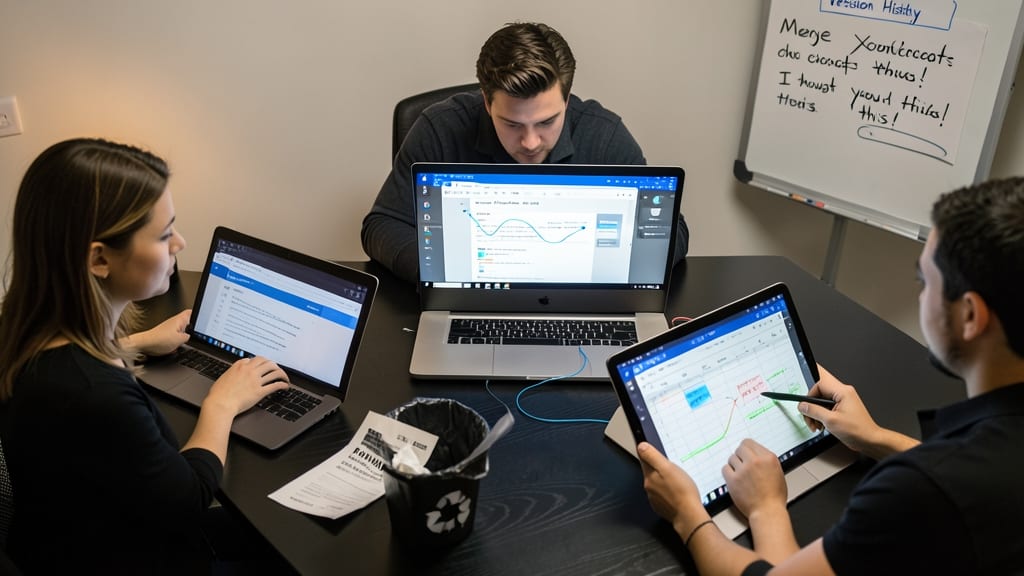
Say goodbye to the nightmare of tracking "FinalDraftv3.docx" and "YourVersion_Final.doc"—Microsoft Teams’ real-time co-authoring lets your entire group edit Word, PowerPoint, or Excel files simultaneously, with changes appearing live as teammates type. No more merging conflicts or "I thought you updated this!" emails—every edit is timestamped, and you can even see who’s currently working on which section.
The feature works seamlessly with Office 365 apps you already use, so no extra software is needed. Need to highlight a section in red while your teammate adds bullet points? Just click the comment or suggestion tool to mark edits without overwriting. For presentations, the live PowerPoint collaboration lets your group refine slides together, with version history to revert if someone accidentally deletes a key slide.
This is the ultimate tool for group research papers, design projects, or spreadsheets where multiple hands make light work. Whether you're balancing night shifts or time zones, real-time editing keeps your project moving forward—no more waiting for file drops. ✨
Built-In Video Conferencing for Study Groups

Forget crowded coffee shops—Microsoft Teams turns your laptop into a virtual study hub with built-in video conferencing that rivals dedicated meeting tools. The platform’s 4K@30fps video quality (with adjustable bitrates for slow connections) ensures crisp visuals, while screen sharing lets you present slides, code, or research side-by-side with teammates.
Need to include absent members? Record sessions directly in Teams and share the MP4 exports with one click—no third-party tools required. The virtual whiteboard feature lets your group brainstorm visually, saving sketches as PNGs to your project files. Background blur and noise suppression keep focus on the discussion, not distracting office sounds.
Perfect for remote groups or students balancing multiple time zones, this replaces impromptu meetups with a battle-tested setup. 💻
Automatic Assignment Tracking with Planner Integration
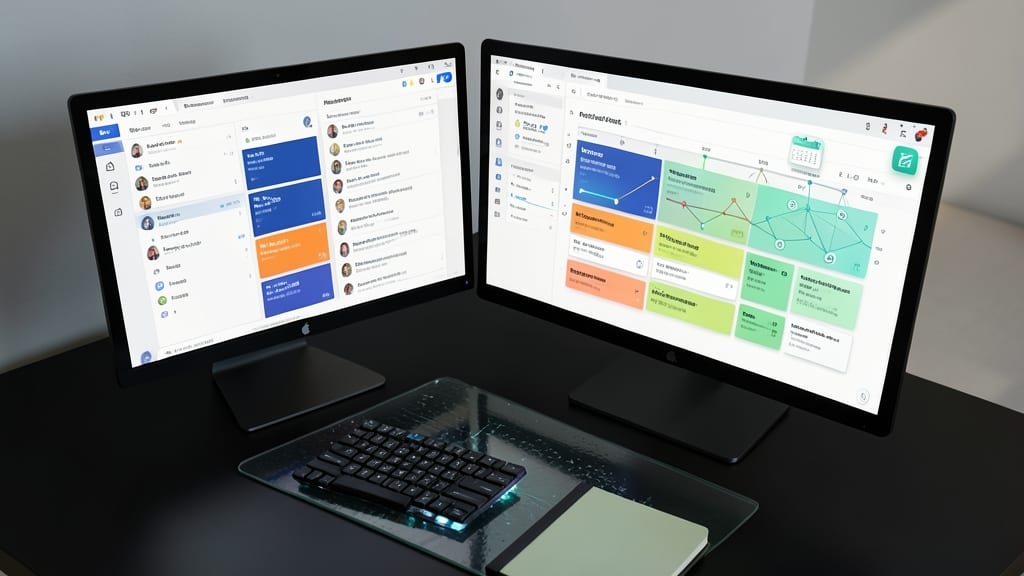
Forget sticky notes and scattered to-do lists—Microsoft Teams’ Planner integration turns group project chaos into a visual, interactive timeline. This feature syncs directly with Microsoft Planner to create Kanban-style task boards where every assignment, subtask, and deadline gets its own customizable card with due dates, assignees, and progress tracking.
Drag-and-drop tasks between To Do, In Progress, and Done columns to monitor workflow in real time. Set up automatic reminders so no one misses a deadline, and use color-coded labels to categorize tasks by priority or subject. The best part? It updates instantly across all team members’ devices, so everyone stays on the same page—no more “I thought you were handling that!” moments.
Perfect for group projects with tight deadlines, this tool is a game-changer for students juggling research, drafting, and revisions. Whether you're leading a presentation team or just trying to keep your group from falling behind, Planner integration keeps everyone accountable—without the stress. ✨
Secure File Sharing Without Email Clutter

Tired of accidentally emailing sensitive project files to the wrong person? Microsoft Teams' encrypted team folders replace clunky Dropbox links with a secure, centralized hub where only approved members can access files—no more guessing if your research notes ended up in your professor's spam folder.
Each team gets a dedicated Files tab with version history, direct Office 365 integration, and end-to-end encryption by default. Need to share that 50-page group presentation? Simply drag it into the folder—no more password-protected links or confusing download requests. The system even tracks who accessed files and when, so you can spot that one team member who "forgot" to contribute.
This is the perfect solution for sensitive academic projects where confidentiality matters, like thesis research or client-based assignments. No more late-night panic over accidentally sharing drafts with the entire internet. ✨
Instant Polls and Quizzes for Group Decisions

Endless debates over presentation topics or project ideas? Microsoft Teams’ instant polls turn group decisions into a one-click vote—no more wasted time or stubborn stalemates. Simply type your question, add answer options, and watch results update in real-time with a colorful bar graph that shows consensus instantly.
You can even set anonymous voting to prevent bias, or add follow-up questions to refine ideas further. The zero-config setup means polls work instantly in chats or meetings—no extra apps or logins required. Whether it’s picking a research angle or assigning roles, this feature cuts decision fatigue by 80% in group settings.
Perfect for student clubs, study groups, or class projects, where quick consensus keeps momentum alive. No more passive-aggressive "I don’t care" comments—just data-driven decisions that move your team forward. ✨
Integrated Classroom Notifications and Alerts
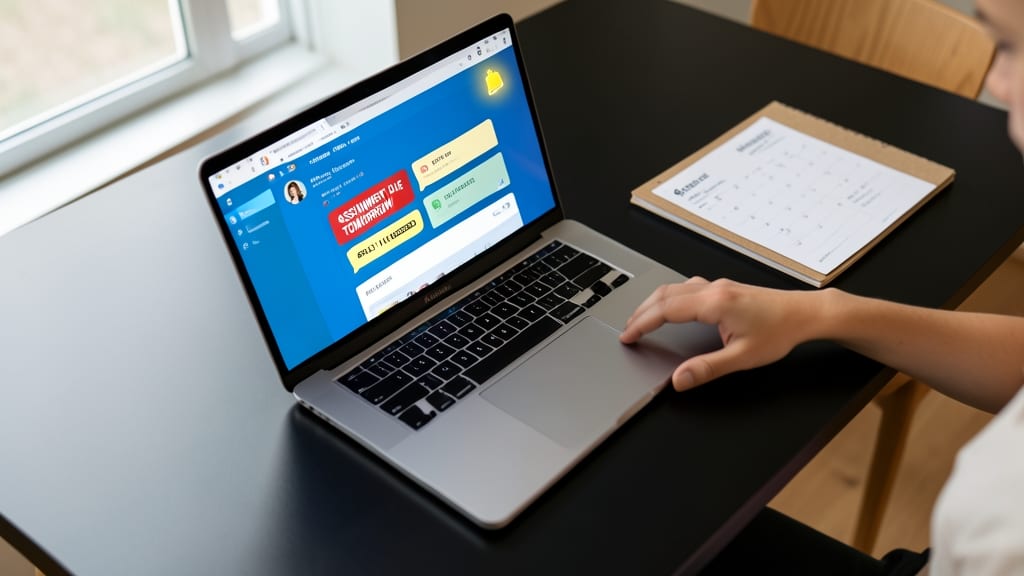
Forget scrambling to remember deadlines or chasing down missed replies—Microsoft Teams' built-in notifications turn forgetfulness into a thing of the past. With customizable alerts for assignments, replies, and file updates, you’ll never miss a critical project milestone again.
Set up priority notifications for due dates, receive instant alerts when teammates reply to messages, or get updates when shared files are modified. The system syncs across devices, so you’ll stay informed whether you’re checking your phone between classes or working on your laptop. No more "I thought you sent that!" moments—just seamless teamwork.
This feature is a game-changer for group projects with tight deadlines, ensuring everyone stays accountable without constant check-ins. ⚡
Virtual Whiteboard for Brainstorming Sessions

Forget lost sticky notes and smudged whiteboard markers—Microsoft Teams’ virtual whiteboard turns brainstorming sessions into seamless, digital experiences. Whether you're sketching mind maps, organizing project timelines, or jotting down quick ideas, the tool lets your team collaborate in real time without the mess.
Add colorful sticky notes, draw freehand with precision tools, or insert pre-made shapes to visualize concepts instantly. Every change saves automatically, so your team’s ideas stay intact—no more frantic photos of whiteboards or lost notes. The whiteboard even integrates with OneNote and PowerPoint, letting you export sketches directly into presentations or documents.
Perfect for design projects, group presentations, or even study sessions, this feature eliminates the friction of physical brainstorming while keeping everyone engaged. ⚡
One-Click Access to Office 365 Apps
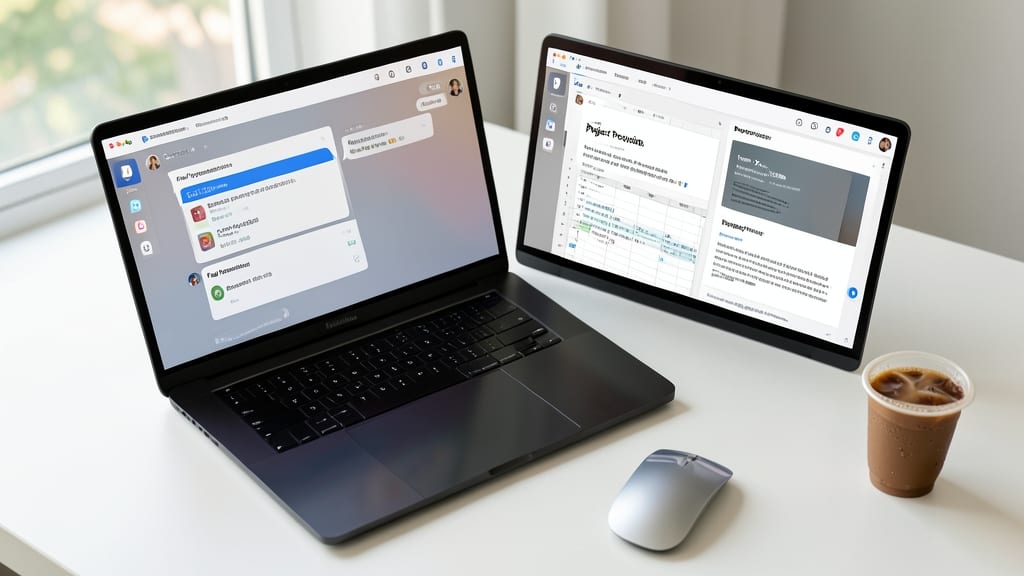
Tired of bouncing between apps while working on group projects? Microsoft Teams eliminates that hassle by embedding Word, Excel, PowerPoint, and OneNote directly into your workspace. With just one click, you launch these apps without leaving the conversation or files—no more tab-switching chaos.
The integration is seamless: open a shared Excel spreadsheet in Teams, make edits, and save changes instantly. Need to draft a PowerPoint presentation? Launch it from the same interface where you’re discussing ideas. The Office 365 apps load quickly and sync automatically, so your team always works from the latest version. Plus, OneNote’s digital notebook keeps all brainstorming notes organized alongside your project files.
This feature is a game-changer for students juggling multiple files and tools—especially those working on research papers, presentations, or spreadsheets. Whether you're collaborating on a group project deadline or planning a presentation, keeping everything in one place saves time and reduces stress. ✨
Free Educational Licensing with No Ads

Tired of paying for collaboration tools when you're already shelling out for textbooks? Microsoft Teams for Education gives you full premium access—including video conferencing, file storage, and advanced integrations—completely free with your school email.
No ads clutter your workspace, no subscription fees drain your budget, and no feature restrictions hold you back. Whether you're working on a group research paper or a multimedia presentation, you get the same tools professionals use—without the cost. Plus, Microsoft’s educational licensing ensures your data stays secure and compliant with school policies.
This makes Teams the smartest choice for students balancing tight budgets and big projects. No compromises, just premium collaboration at zero cost. ✨