
Tip & Trick
Mastering Microsoft Word can transform your productivity—these seven underused yet powerful Microsoft 365 Word tips and tricks will help you work smarter, not harder, cutting down daily tasks to mere seconds.
Quick Parts Gallery for Repeated Text
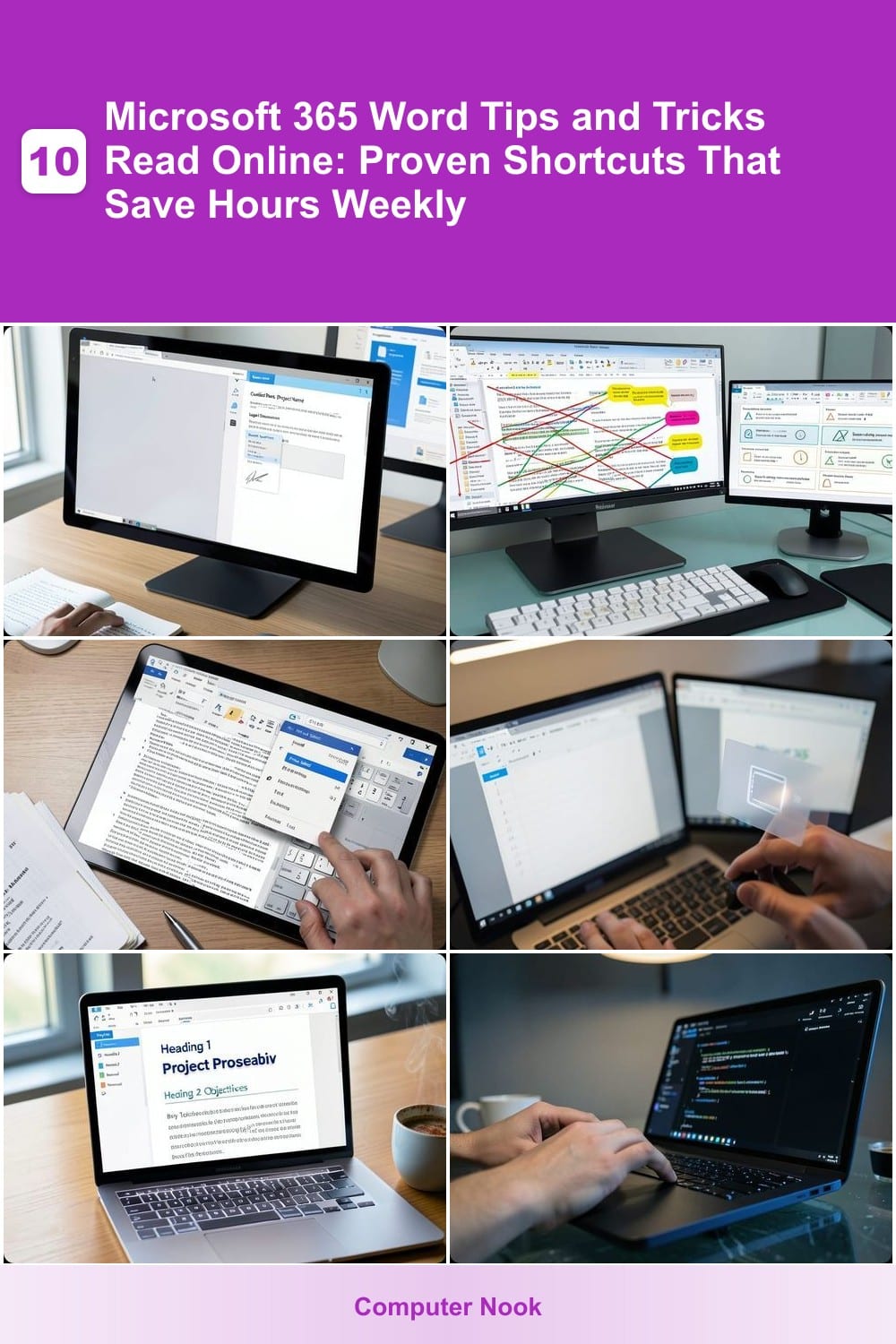
Tired of manually typing the same disclaimers, signatures, or project headers every time? Microsoft Word’s Quick Parts Gallery lets you save and reuse text blocks in seconds—no copy-pasting required.
To get started, type your repetitive text (like a legal footer or email template), then go to Insert > Quick Parts > Save Selection to Quick Part Gallery. Name it (e.g., "Client Signature") and store it for future use. Pro tip: Use AutoText for dynamic fields like dates or names. The Building Blocks feature even lets you save formatted text with styles intact.
This trick is a lifesaver for legal professionals, freelancers, and academic writers who juggle templates daily. Spend less time typing boilerplate and more time refining content. ✨
Track Changes with Custom Markup
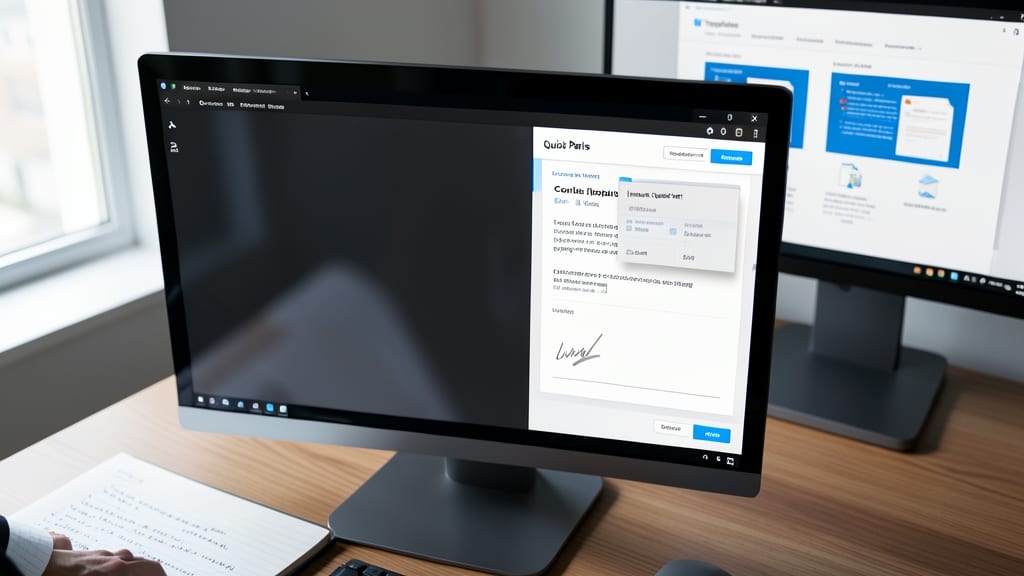
Tired of deciphering a mess of default Track Changes markings in your team’s documents? Microsoft Word lets you customize colors and symbols to match your workflow, turning chaotic edits into a streamlined, visually clear process.
Start by enabling Track Changes (Review tab > Track Changes), then right-click any marked text to access Change Tracking Options. Here, you can assign unique colors (e.g., blue for comments, green for formatting changes) and even swap symbols (like balloons or underlines) to fit your team’s preferences. For large teams, this prevents confusion when reviewing lengthy reports or contracts, ensuring everyone sees edits at a glance.
This trick is a game-changer for legal teams, editors, and project managers collaborating on high-stakes documents. With a few clicks, you’ll transform cluttered revisions into a clean, branded workflow. ✨
Navigate Documents with Find and Select
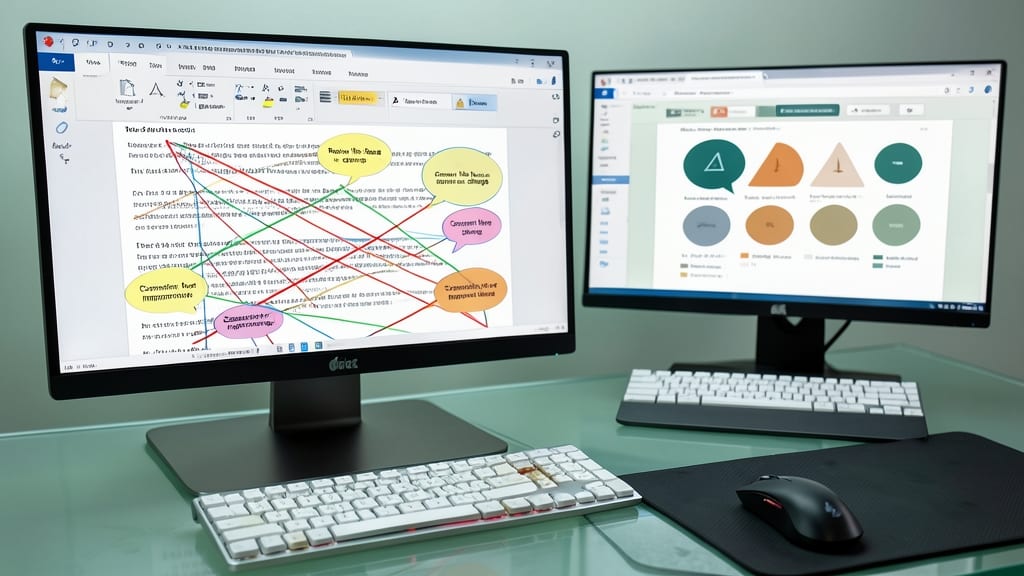
Drowning in a 50-page legal brief or research paper? The Find and Select tool in Microsoft 365 Word is your lifeline—letting you skip straight to headings, tables, or even specific phrases with a few clicks.
Press Ctrl+F to open the search bar, then click the dropdown arrow to reveal Find and Select. Here, you can instantly jump to headings (Level 1-9), tables, graphs, or pages—no more scrolling for hours. Pro tip: Use the "Go To" tab to navigate by bookmarks or line numbers, perfect for pinpointing edits in dense documents.
Lawyers, academics, and project managers will love this for reviewing lengthy contracts or reports. Try it next time you’re buried in a document—your eyes (and time) will thank you! ✨
Insert Screenshots Directly from Screen

Tired of fumbling with third-party screenshot tools just to add visuals to your Word docs? Microsoft 365’s built-in Screen Clipping feature lets you capture and insert screenshots directly from your screen—no extra downloads required.
Simply click the Screen Clipping button in the Insert tab, then select the area of your screen to capture. The image instantly embeds into your document with full editing capabilities—resize, crop, or annotate it without leaving Word. Perfect for tech tutorials, manuals, or presentations where visuals make complex steps crystal clear.
This trick is a lifesaver for trainers, developers, or anyone creating step-by-step guides. No more juggling multiple apps—just seamless integration. ✨
Use Styles for Consistent Formatting
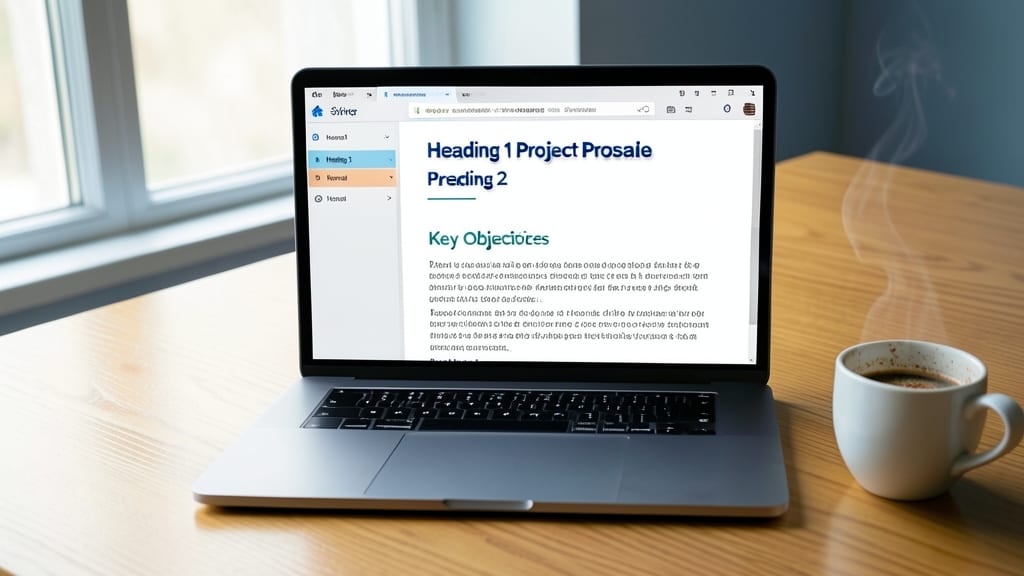
Tired of manually formatting headings, subheadings, and body text in every document? Microsoft Word’s Styles feature is your secret weapon for instant consistency—especially for resumes, academic papers, or corporate reports where branding matters.
With just a few clicks, apply predefined styles like Heading 1, Subtitle, or Caption to ensure fonts, spacing, and alignment match your template. Need to update all headings at once? Change the Heading 1 style once, and every instance updates automatically. Plus, styles make it effortless to generate a table of contents with a single click.
Perfect for professionals who juggle multiple documents with strict formatting rules, this trick saves hours of manual tweaking and ensures your work looks polished and professional every time. ✨
Enable Dark Mode for Reduced Eye Strain

Late-night coding sessions or early-morning writing sprints? Dark Mode in Microsoft 365 Word reduces eye strain by cutting 80% of blue light—proven to disrupt sleep cycles and cause fatigue. The sleek, high-contrast interface also minimizes glare on OLED/LCD screens, making it easier to focus for hours.
Enabling it takes seconds: Go to View > Dark Mode (or use the Ctrl+Alt+D shortcut). For extra comfort, pair it with Windows Night Light (or macOS Night Shift) to further reduce blue light exposure. The dark gray background and white text combo ensures readability while keeping your eyes refreshed—ideal for developers debugging or writers editing drafts after dark.
This trick is a game-changer for night owls, remote workers, or anyone battling digital eye strain. Give it a try during your next all-nighter and feel the difference. ✨
Collaborate with Real-Time Co-Authoring
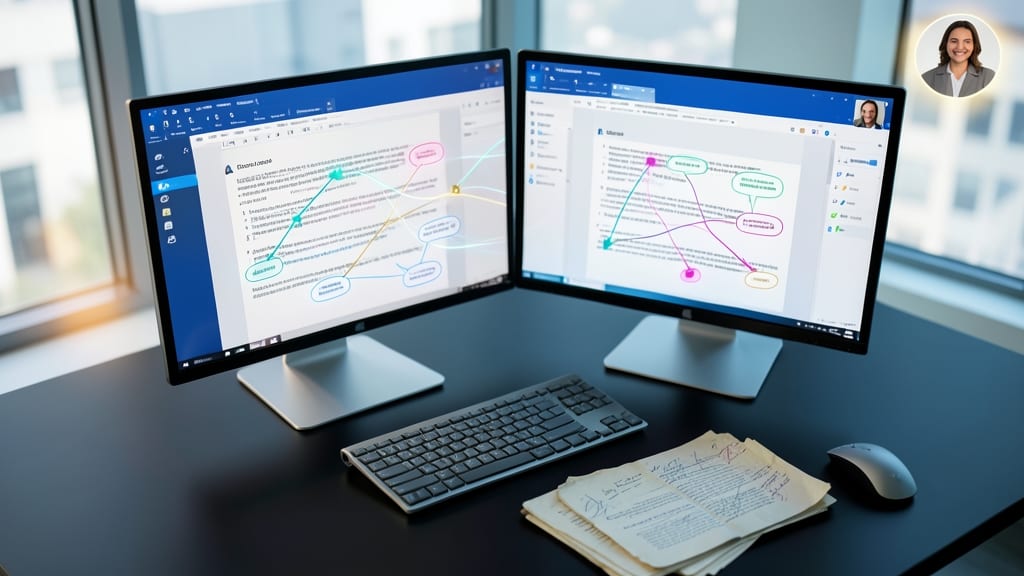
Tired of endless email chains and version control chaos? Real-Time Co-Authoring in Microsoft 365 Word lets multiple users edit the same document simultaneously—no more merging conflicts or lost updates.
With live cursors showing everyone’s edits in real time, comment threads tied to specific text, and version history to revert changes, collaboration feels seamless. The feature works across Windows, Mac, and web browsers, and integrates with Teams for even smoother workflows. Perfect for remote teams drafting reports or brainstorming session notes.
Marketing teams, legal professionals, and educators will love this—no more waiting for feedback or juggling multiple file versions. ⚡