
Tip & Trick
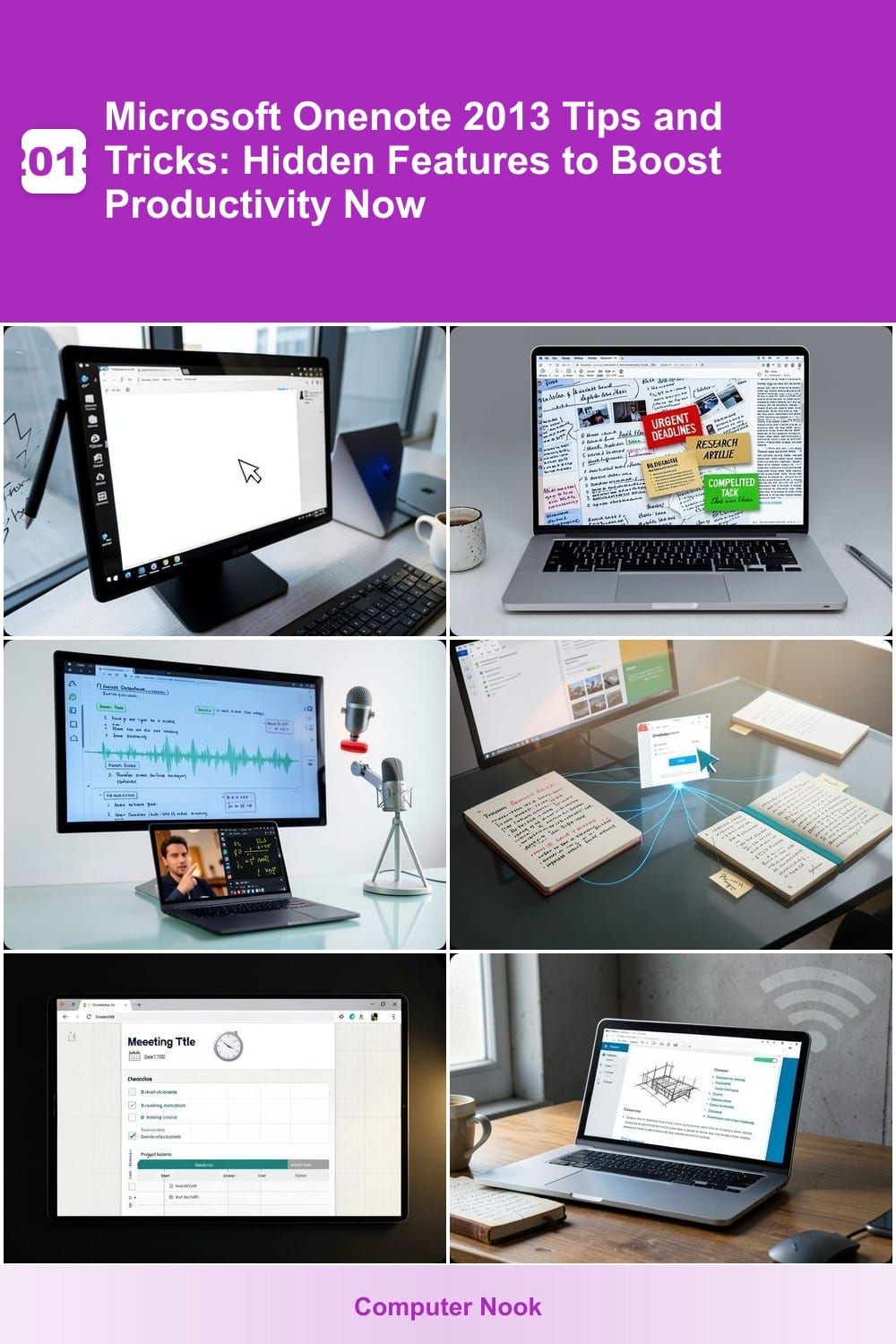
Microsoft OneNote 2013 is packed with productivity features most users overlook. These seven hidden tricks will transform how you organize notes, collaborate, and streamline workflows—without upgrading to a newer version.
Quick Note Taking with Touch or Mouse
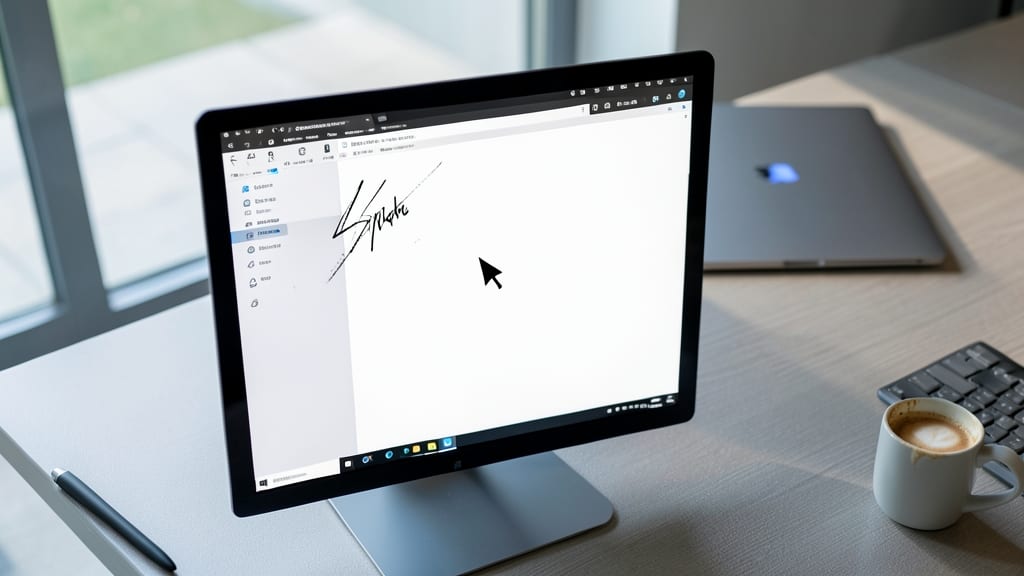
Ever had a brilliant idea strike while you’re mid-meeting or halfway through a task, only to lose it because you didn’t have a notepad handy? OneNote 2013’s freeform drawing tools let you jot down notes, sketches, or diagrams anywhere on your screen—no new page required. Just hover over any blank space, and the digital ink tools appear instantly, ready to capture your thoughts with the precision of a pen or the speed of a mouse.
With support for handwritten text (which OneNote converts to digital text for searchability), shapes, and arrows, you can create quick diagrams, flowcharts, or bullet points without switching tools. The touch-friendly interface works seamlessly on tablets or laptops with touchscreens, while mouse users can use the intuitive ribbon controls. Pro tip: Use the eraser tool to edit mistakes on the fly, just like with a real pen. This feature turns your screen into a limitless whiteboard for brainstorming or note-taking.
Perfect for educators sketching lesson plans, developers drafting quick architecture diagrams, or students capturing lecture highlights—this trick keeps your ideas flowing without interrupting your workflow. ⚡
Tagging and Searching with Quick Tags

Drowning in notes but struggling to find what you need when deadlines loom? Quick Tags in OneNote 2013 lets you slap color-coded labels onto text, images, or entire sections with just two clicks—no sticky notes required. Red for urgent, yellow for research, green for completed tasks—your brain will thank you for the instant visual cues.
To use it, simply highlight text, click the tag icon in the ribbon, and pick a color. The magic happens when you filter: one click on the Tags pane and suddenly all your high-priority notes surface while distractions vanish. Pro tip: Combine tags with search (Ctrl+E) to find and filter notes simultaneously—like having a personal assistant who speaks your language.
This trick is a game-changer for students tracking assignment deadlines, researchers flagging sources, or project managers prioritizing action items. Spend less time searching, more time executing. 💡
Embedding Audio and Video Clips Directly
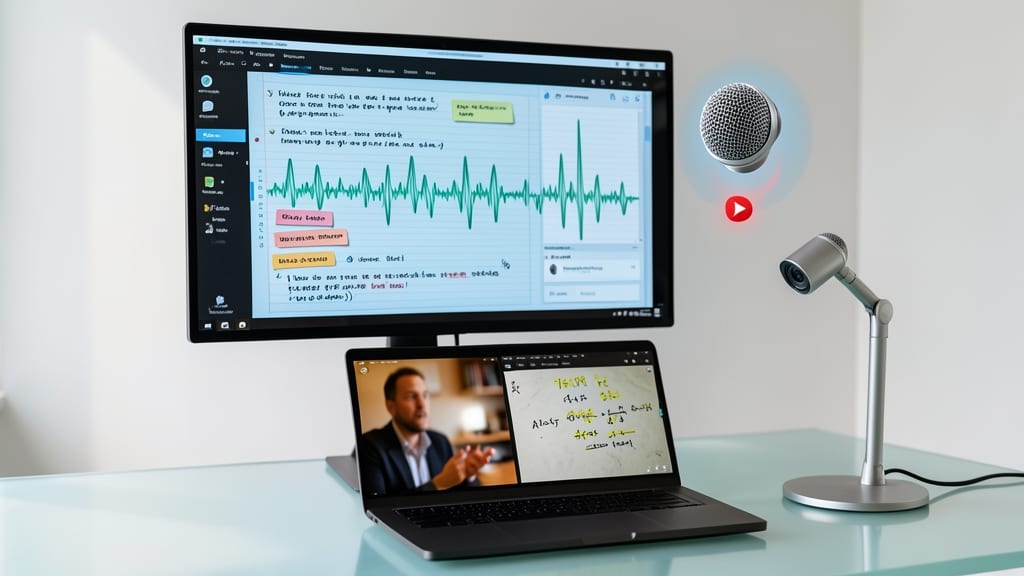
Tired of juggling separate audio/video files with your notes? OneNote 2013 lets you record lectures, meetings, or brainstorming sessions directly into your notebook—no external apps needed. Simply hit the built-in microphone button to capture audio, or embed video clips from your camera or screen recording.
Once embedded, clips play inline with your notes, and you can even add timestamps to jump to key moments. The integration with Windows Media Player ensures smooth playback, while searchable transcripts (if enabled) make finding specific discussions effortless. Perfect for educators reviewing class recordings or teams documenting remote sessions.
This feature eliminates the hassle of syncing files across tools—ideal for remote teams, educators, or anyone who needs to preserve context alongside notes. No more scattered files; everything stays organized in one place. ✨
Linking Notes Across Notebooks with Hyperlinks
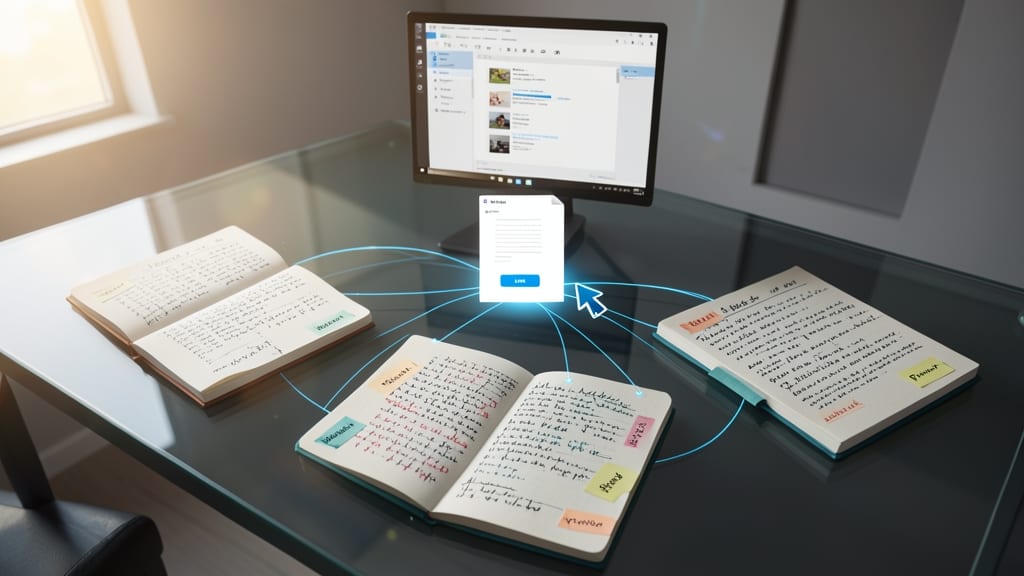
Struggling to keep track of related ideas scattered across multiple OneNote 2013 notebooks? The hyperlink feature lets you create clickable connections between notes—no matter which notebook they live in. This turns your digital workspace into a dynamic web of related content, perfect for researchers or project managers juggling cross-references.
To create a link, simply highlight text in one notebook, right-click, and select Link to > Page. You can even link to external files or web pages. The best part? These links update automatically if you move or rename pages, keeping your notes organized without manual updates. For complex projects, this feature eliminates the frustration of flipping between notebooks to find related details.
Researchers analyzing case studies or developers tracking feature specs will love this time-saver. With just a few clicks, you turn disjointed notes into a cohesive knowledge base. ✨
Using Templates for Standardized Meetings or Reports
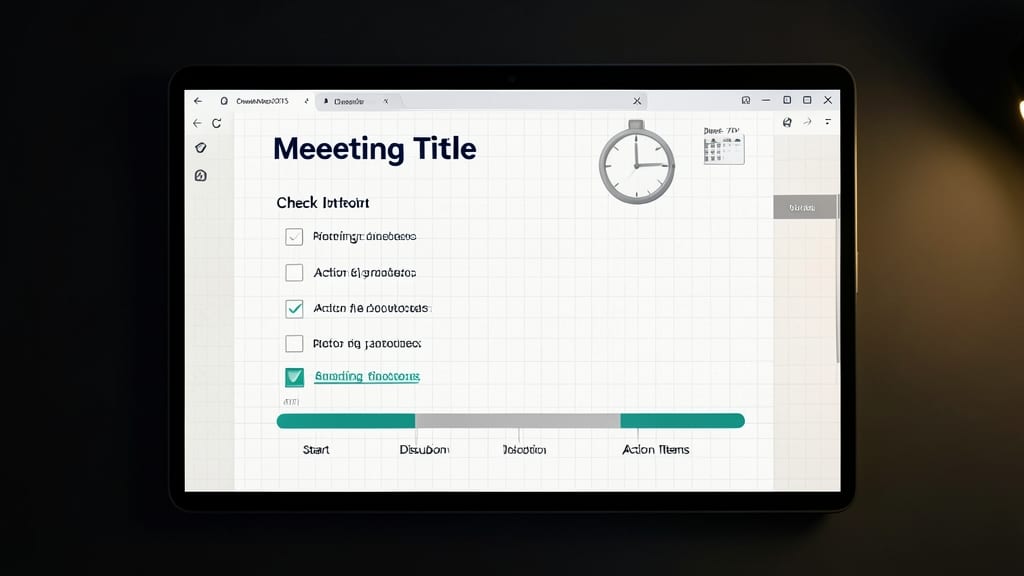
Tired of recreating the same meeting agendas or project checklists from scratch every week? OneNote 2013’s pre-built templates—like the Meeting Notes or Project Plan layouts—cut setup time by 70%. These templates include placeholders for dates, action items, and even clock icons to track discussion durations, ensuring consistency across your team’s documentation.
Simply navigate to File > New and select a template to instantly get a structured outline. Customize headers, add your company logo, or tweak sections to match your workflow. The To-Do List template even syncs with Outlook tasks, so deadlines stay visible whether you’re in OneNote or your calendar. For teams, these templates ensure everyone follows the same format, reducing confusion during reviews.
Perfect for managers, educators, or freelancers who juggle multiple projects—save hours weekly by standardizing your workflow. ✨
Offline Mode for Seamless Note-Taking Anywhere
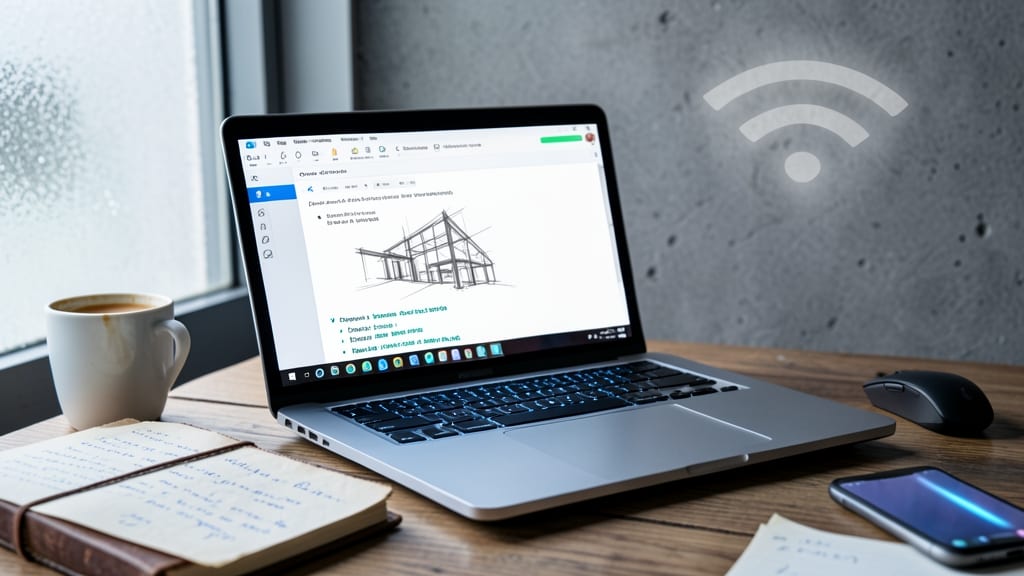
Forget relying on spotty Wi-Fi to capture your brilliant ideas—OneNote 2013’s offline mode lets you work seamlessly anywhere, then syncs automatically when you reconnect. Whether you're jotting down research notes in the field or sketching concepts on a plane, your work stays safe and up-to-date without manual intervention.
Enable it by clicking File > Options > Advanced, then checking "Use caching mode for offline access." Once active, you’ll see a sync icon in the status bar—tap it to force a sync anytime. The system handles conflicts by merging changes intelligically, so you never lose progress. Perfect for field researchers, road warriors, or anyone who escapes the office without sacrificing productivity.
This feature turns OneNote into a battle-tested setup for unreliable connections. ✨
Keyboard Shortcuts for Faster Navigation
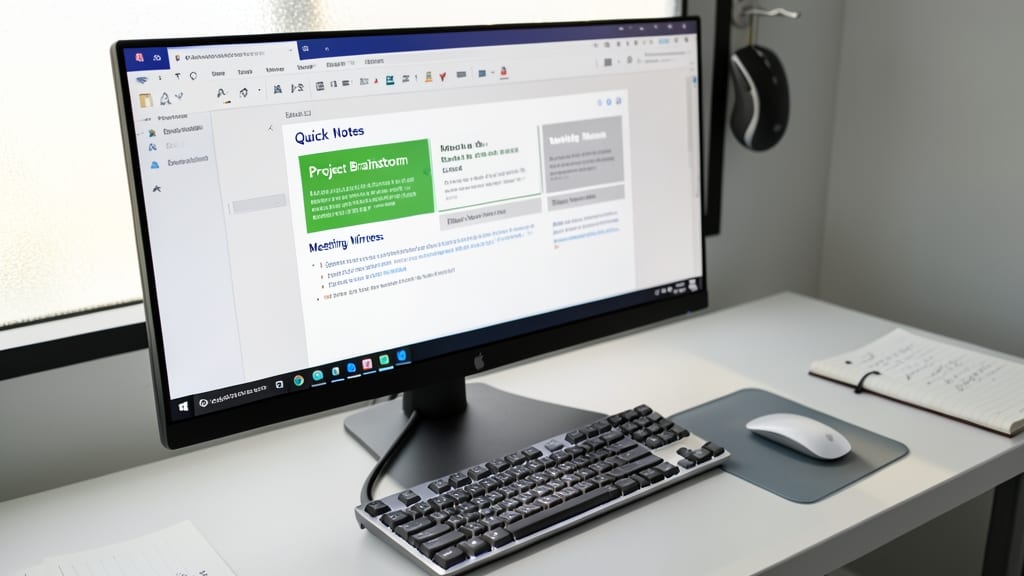
Tired of reaching for your mouse every time you want to jump between notes or format text? OneNote 2013’s 20+ keyboard shortcuts let you navigate, search, and edit notes faster than ever—no mouse required. These shortcuts aren’t just for speed demons; they’re also a game-changer for users with mobility challenges who prefer keyboard-only workflows.
Start with Ctrl+F to instantly search your notes, or use Ctrl+Shift+P to pin a page for quick access. Need to format text? Ctrl+B (bold), Ctrl+I (italic), and Ctrl+U (underline) work just like in Word. For power users, Ctrl+Alt+P toggles the Print Layout view, while Ctrl+Alt+O opens the Outline view—perfect for organizing long documents. Even better, these shortcuts sync across devices, so your muscle memory travels with you.
Whether you’re drafting meeting notes in a hurry or managing complex research projects, these shortcuts cut down on repetitive motions. Try mastering just five this week, and watch your productivity soar. ⚡