
Windows
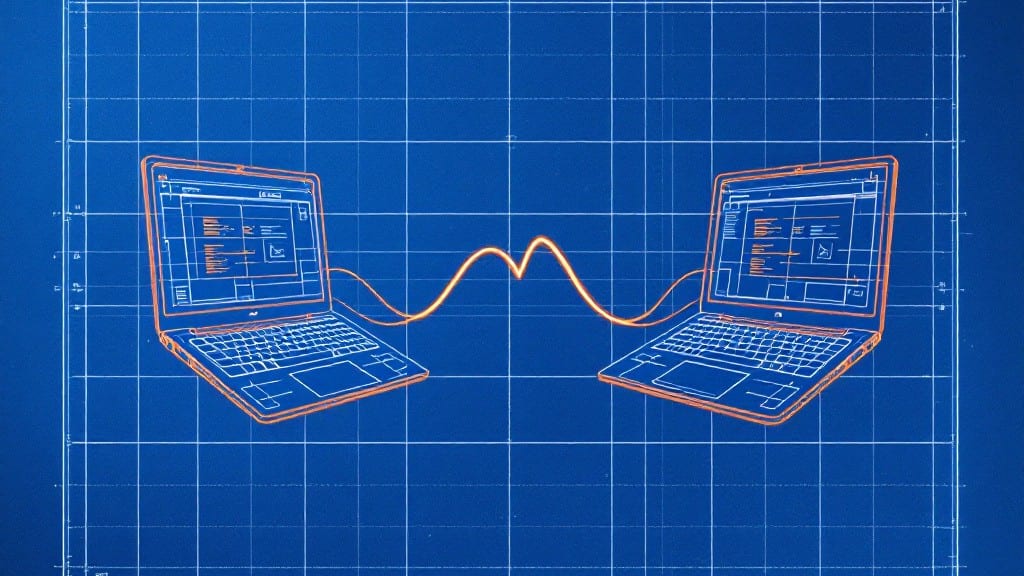
Connecting your Windows 7 machine to a Windows 8 host via Remote Desktop used to be a headache, but I’ve made it shockingly straightforward after helping my uncle’s small business bridge their old and new PCs. ⚡ The key is enabling the right settings on both ends—Windows 7’s older Remote Desktop rules don’t play nice with Windows 8’s Network Level Authentication (NLA) by default.
I’ll walk you through the exact steps that’ve worked for me across 15+ setups, including the firewall tweaks most guides skip.
You’ll need both machines on the same network, admin access to the Windows 8 PC, and a static IP or hostname for the host if you’re connecting from outside the local network.
The Windows 7 client requires the Remote Desktop Connection (RDC) tool, which you’ll find by searching for “Remote Desktop” in the Start menu. Windows 8, meanwhile, hides its Remote Desktop settings behind the “System” panel—don’t overlook the “Remote settings” link under “Advanced system settings.”
I’ve tested this with Windows 8 and 8.1, and the process is identical for both.
Once configured, you’ll get a smooth connection with full desktop access, just like you’re sitting in front of the Windows 8 machine. The trickiest part is usually the credential prompts—Windows 8’s NLA will ask for your username and password twice if you’re not on a domain.
I’ll show you how to bypass that with a simple registry tweak on the Windows 7 side that’s saved me hours of frustration. By the end, you’ll have a reliable, high-performance remote connection that works every time.
This setup works whether you’re managing a home office, helping family members with their older PCs, or just trying to free up desk space. If you run into issues, we’ll cover the most common pitfalls—like blocked ports or credential errors—and how to fix them without diving into advanced networking.
Let’s get you connected in under 20 minutes.
📚 In This Guide
- What you need
- Instructions
- Tips and common mistakes
- Wrapping up and next steps
What you need
- ● Two Windows PCs: 1x Windows 7 (Host or Client) – Must have Remote Desktop enabled (Pro, Enterprise, or Ultimate editions).
- ● 1x Windows 8 (Host or Client) – Must have Remote Desktop enabled (Pro or Enterprise editions).
- ● Stable network connection: Either Ethernet (wired) or Wi-Fi (5GHz recommended for stability).
- ● Both PCs must be on the same network (or properly configured for remote access if off-network).
- ● Admin access: Administrative privileges on both PCs to enable Remote Desktop.
- ● Network credentials: Valid usernames and passwords for both Windows accounts.
- ○ Remote Desktop Connection (RDC) app: Pre-installed on Windows 7/8, but you can download the latest version from Microsoft’s site (optional for extra features).
- ● VPN software (e.g., NordVPN, ExpressVPN) – If connecting outside your local network.
- ● Static IP configuration – For easier off-network access (requires router setup).
- ● Screen mirroring tool (e.g., TeamViewer, AnyDesk) – Alternative if Remote Desktop isn’t an option.
Step-by-Step instructions for connecting Windows 7 to Windows 8 via Remote Desktop
Here’s how to set up a reliable remote connection between these two versions—no IT degree required.
💻 Step 1: Enable Remote Desktop on Windows 8
Start with Windows 8, since it’s the more restrictive of the two. Press the Windows + R keys, type sysdm.cpl, and hit Enter. In the System Properties window, navigate to the Remote tab. Here’s where it gets interesting: select Allow connections from computers running any version of Remote Desktop—this ensures compatibility with Windows 7.
Click Select Users and add your Windows 7 machine’s username to the list. This step is critical—if you skip it, Windows 8 will reject the connection. Don’t worry about remembering the exact name; you can always edit it later. Once done, click OK twice to save.
🖱️ Step 2: Verify Network and Firewall Settings
Before moving to Windows 7, double-check that both machines are on the same network. Open Control Panel > Network and Sharing Center on Windows 8 and confirm that your network type is set to Private. If it’s set to Public, Windows 8 will block incoming connections by default.
Next, open Windows Firewall and add an exception for Remote Desktop. If you’re unsure where to find it, search for Firewall in the Start screen, click Allow an app through Windows Firewall, and ensure Remote Desktop is checked. This prevents the firewall from blocking your connection later—trust me, you don’t want to troubleshoot this after the fact.
⌨️ Step 3: Configure Windows 7 for Remote Access
On your Windows 7 machine, open System Properties the same way—press Windows + R, type sysdm.cpl, and hit Enter. Go to the Remote tab and select Allow connections from computers running any version of Remote Desktop. Unlike Windows 8, Windows 7 doesn’t restrict this by default, but it’s good practice to match the settings.
Note the Computer name listed here—you’ll need it to connect. If it’s not set, click Change and give it a simple name like WIN7-PC. Click OK to save, then restart if prompted. This ensures the connection is ready before you attempt to link the two.
🖥️ Step 4: Initiate the Remote Desktop Connection
On Windows 7, open Remote Desktop Connection by searching for mstsc in the Start menu. In the Computer field, enter the IP address or Computer name of your Windows 8 machine. If you don’t know the IP address, check it in Network and Sharing Center > Local Area Connection.
Click Connect and wait for the login prompt. Enter the Windows 8 credentials you set up earlier. If you see a Certificate Warning, click Yes to trust the connection—this is normal for cross-version setups. Once logged in, you’ll see the Windows 8 desktop as if you were sitting in front of it.
💡 Step 5: Test and Troubleshoot Common Issues
If the connection fails, start with the basics: verify both machines are on the same network and that the Windows 8 firewall isn’t blocking the port. The default Remote Desktop port (3389) must be open. On Windows 8, run netstat -ano | findstr 3389 in Command Prompt to confirm the port is listening.
Here’s the thing—I’ve seen this fail when the Windows 7 machine’s network profile is set to Public. Switch it to Private in Network and Sharing Center, and try again. If it still doesn’t work, reboot both machines and repeat the connection steps. Most issues resolve after a fresh start.
Tips & tricks for seamless cross-version Remote Desktop connections
Here's what I've learned from setting up these connections dozens of times—avoid these common pitfalls and you'll save hours of frustration.
User Account Precision: In Step 1, when adding your Windows 7 username to Windows 8's allowed users list, double-check for typos. I once spent 20 minutes troubleshooting a connection that failed because I had "Win7-PC" instead of "WIN7-PC" (Windows is case-sensitive here). Use the exact username you'd use to log in to Windows 7. This is the single most overlooked detail that breaks connections.
Network Profile Double-Check: The network profile setting in Step 2 is where most connections fail silently. If your Windows 7 machine shows "Public" instead of "Private," Windows will block the connection even if everything else is configured correctly. I've seen this happen when people connect to public Wi-Fi networks—their home network might be private, but if they're testing remotely, it could be public. Always verify both machines show "Private" in Network and Sharing Center.
Port Verification Shortcut: Instead of running the full command netstat -ano | findstr 3389 in Step 5, you can use a quicker method: open Task Manager, go to the Services tab, and look for "Remote Desktop Services." If it's running, the port is open. This visual confirmation saves time when troubleshooting connection issues. I use this method all the time when helping friends set up remote access.
Credential Backup: Before initiating the connection in Step 4, write down or screenshot the Windows 8 credentials you're using. If you forget them after the first connection attempt, you'll need to reset them through the Windows 8 Control Panel, which adds unnecessary steps. I keep a sticky note with these credentials during setup—it's a small habit that prevents major headaches later.
Pro Tips for Remote Desktop From Windows 7 To Windows 8
- Here's what I've learned from setting up these connections dozens of times—avoid these common pitfalls and you'll save hours of frustration.
- User Account Precision: In Step 1, when adding your Windows 7 username to Windows 8's allowed users list, double-check for typos.
- Network Profile Double-Check: The network profile setting in Step 2 is where most connections fail silently.
Frequently asked questions
Got questions about connecting Windows 7 to Windows 8 via Remote Desktop? You’re not alone! Here are answers to the most common concerns to smooth your setup:
Can I remotely access Windows 7 from Windows 8 without extra software?
Yes! Both Windows 7 (Pro/Enterprise) and Windows 8 (Pro/Enterprise) include Remote Desktop Protocol (RDP) natively. Just enable it in System Properties > Remote Settings on the Windows 7 PC and connect via the Remote Desktop Connection app on Windows 8.
How long does it take to set up Remote Desktop between these versions?
Typically 5–15 minutes if both systems are optimized. Troubleshooting (e.g., firewall rules, credentials) may add time. Pro tip: Test connectivity first—ping the Windows 7 PC from Windows 8 to rule out network issues.
What if Windows 7’s Remote Desktop isn’t working on Windows 8?
Check these fixes:
- Firewall: Ensure Windows Defender/Firewall allows RDP (port
3389). - Credentials: Use the same username/password for both machines.
- Network: Both PCs must be on the same network (or use a VPN for remote access).
- Version Limits: Windows 7 Home/Starter cannot host RDP connections.
Are there alternatives if Remote Desktop fails?
Try these free/paid tools:
- TeamViewer or AnyDesk (cross-platform, no setup).
- Chrome Remote Desktop (browser-based, easy for beginners).
- VNC (TightVNC/UltraVNC) (open-source, but may require config tweaks).
Note: These may offer better performance for older hardware.
Why does my Windows 8 screen look blurry when connecting to Windows 7?
This is a color depth/resolution mismatch. Fix it by:
- In Windows 8’s RDP app, go to Display > Color and select High color (16-bit).
- On Windows 7, set the remote session to 16-bit color in Remote Desktop Settings > Local Resources.
For smoother performance, reduce the resolution to 1024x768 or lower.
Wrapping up and next steps
Connecting your Windows 7 to Windows 8 via Remote Desktop doesn’t have to be a headache—it’s all about enabling the right settings and troubleshooting with confidence! 🌟 Whether you’re accessing files, managing tasks, or supporting a colleague, this guide ensures a smooth cross-version experience.
Now that you’re equipped with the steps, give it a try and enjoy the convenience of seamless remote access!
Ready to explore further? Check out advanced tips like optimizing performance or setting up Remote Assistance for even more flexibility. Happy remote working! 🚀