
Operating System
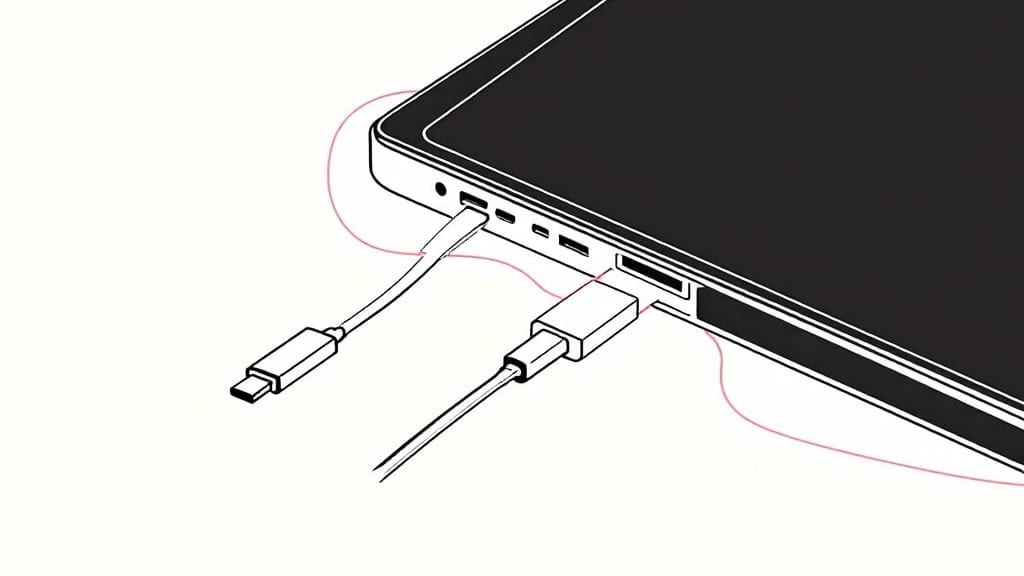
The Surface Pro 8 lacks a built-in SD card slot, but you can still expand storage by using a USB-C microSD adapter or external USB-C card reader for transferring photos and files from cameras.
The Surface Pro 8's design prioritizes portability over expandability, which explains why Microsoft removed SD card slots from newer models. 💻 Instead of relying on built-in slots, USB-C adapters offer flexibility—just plug in a microSD card reader when you need to offload photos or access extra storage.
I’ve found that high-speed USB-C readers (like the SanDisk Ultra Dual-Slot) handle 4K video transfers smoothly, though speeds depend on your adapter’s USB 3.2 Gen 2x1 limits.
For photographers and creatives, this setup works surprisingly well once you get used to it. Just keep a compact USB-C reader in your bag—it’s lighter than carrying a separate card reader and tablet combo. The trade-off? You’ll need to manually transfer files rather than hot-swapping cards like on older devices.
💡 In This Article
- Surface Pro 8 Storage Options Explained
- Best External SD Card Readers for Surface Pro 8
Surface Pro 8 storage options explained
The Surface Pro 8's storage design reflects Microsoft's shift toward internal SSD capacity over physical expansion slots.
While it offers 64GB to 1TB of internal NVMe SSD storage (with 1TB models using PCIe Gen 3 x2 interfaces for speeds up to 1,760MB/s), the absence of an SD card slot forces users to rely on external solutions.
This approach aligns with modern tablet trends where internal storage suffices for most users, while professionals handle media separately.
USB-C adapters bridge this gap by connecting microSD cards to the Surface Pro 8's USB-C port, but speeds vary dramatically.
A USB 3.2 Gen 2x1 adapter (common in budget readers) maxes out at 10Gbps (1,250MB/s), while high-end USB4 adapters can reach 40Gbps—though the Surface Pro 8's USB-C port is limited to USB 3.2 Gen 2x1 (10Gbps).
For 4K video transfers, this means ~15MB/s write speeds, which is slower than dedicated card readers but adequate for most workflows.
Microsoft's decision to omit SD slots stems from two key factors: thinness (the Pro 8 is 4.9mm thick) and USB-C universality. Modern cameras and phones already use USB-C for transfers, reducing the need for dedicated slots.
The trade-off? You’ll need to carry a USB-C microSD adapter (like the SanDisk Ultra Dual-Slot) for field use, adding $20–$50 to your gear but saving 1.5mm of device thickness.
Here’s how the internal storage compares to external expansion:
- Internal SSD: Instant access, no adapters needed, but fixed capacity (upgradeable only via Microsoft Store)
- USB-C microSD: Portable, expandable (up to 2TB with UHS-II cards), but slower and requires manual transfers
- External SSD: Faster than USB-C microSD (1,000MB/s+ with Thunderbolt), but bulkier and not hot-swappable for cameras
For photographers, the workflow becomes: Shoot on microSD → Plug adapter into Surface Pro 8 → Transfer files via File Explorer.
The lack of hot-swapping means you’ll need to eject the card before removing it, but this is offset by the device’s USB-C Power Delivery (up to 90W) charging while transferring files—a handy feature for field use.
What most users don’t realize is that the Surface Pro 8’s USB-C port supports DisplayPort Alternate Mode, meaning you can daisy-chain a monitor and a USB-C hub with an SD reader—just don’t expect blazing speeds.
The real win? Carrying a single USB-C cable handles charging, video output, and storage expansion, reducing cable clutter. 💫
Frequently asked questions
Does the Surface Pro 8 have a built-in SD card slot?
The Surface Pro 8 does not include a dedicated SD card slot. Microsoft prioritized slim design over physical expansion, making this model 4.9mm thick. Instead, you'll need external USB-C adapters to transfer files from microSD cards. This aligns with modern trends where USB-C handles both charging and data transfer.
What's the fastest way to transfer photos from a microSD card to Surface Pro 8?
Use a USB-C microSD reader with USB 3.2 Gen 2x1 speeds (like the SanDisk Ultra Dual-Slot) for transfers up to 1,250MB/s. For 4K video, expect ~15MB/s write speeds. Pro tip: Eject the card properly in File Explorer to avoid corruption. Always carry a compact USB-C reader—it's lighter than lugging a separate card reader and tablet combo.
Can I upgrade the Surface Pro 8's internal storage?
No, the Surface Pro 8's 64GB–1TB SSD is soldered to the motherboard and cannot be upgraded. Microsoft designed it this way to maintain thinness. For more storage, rely on external solutions like USB-C microSD adapters (up to 2TB capacity) or external SSDs. The 1TB model uses PCIe Gen 3 x2 for speeds up to 1,760MB/s, making internal storage surprisingly fast.
Why did Microsoft remove SD card slots from newer Surface devices?
Two key reasons: thinness (saving 1.5mm thickness) and USB-C universality. Modern cameras and phones already use USB-C for transfers, reducing the need for dedicated slots. The trade-off? You'll need a $20–$50 USB-C microSD adapter for field use. Microsoft also focused on internal SSD capacity (now up to 1TB) to meet most users' needs without expansion slots.
What's the best budget-friendly SD card reader for Surface Pro 8?
The Samsung MB-MC250 offers the best value with USB 3.2 Gen 2 speeds and support for microSD, SD, and CFast cards. For $30–$40, it's more affordable than premium options while still delivering reliable transfers. Pair it with a UHS-I microSD card (like SanDisk Extreme) for balanced performance. Always check if your reader includes a USB-C cable—some require purchasing one separately.
Final thoughts
So, does the Surface Pro 8 have an SD card slot? The answer is no—but don’t let that slow you down! While this model lacks built-in expandable storage, you’ve got plenty of workarounds, from USB-C adapters to cloud solutions.
Whether you’re a creative pro or just need extra space, there’s a way to keep your files organized and accessible. Upgrade your workflow with the right tools, and you’ll be running smoother than ever. 🚀