
Software
Microsoft Edge packs powerful features most users overlook. These seven pro tips will transform your browsing experience—boosting speed, security, and productivity while keeping your workflow smooth and efficient.
Enable Edge’s Immersive Reader for Focused Reading

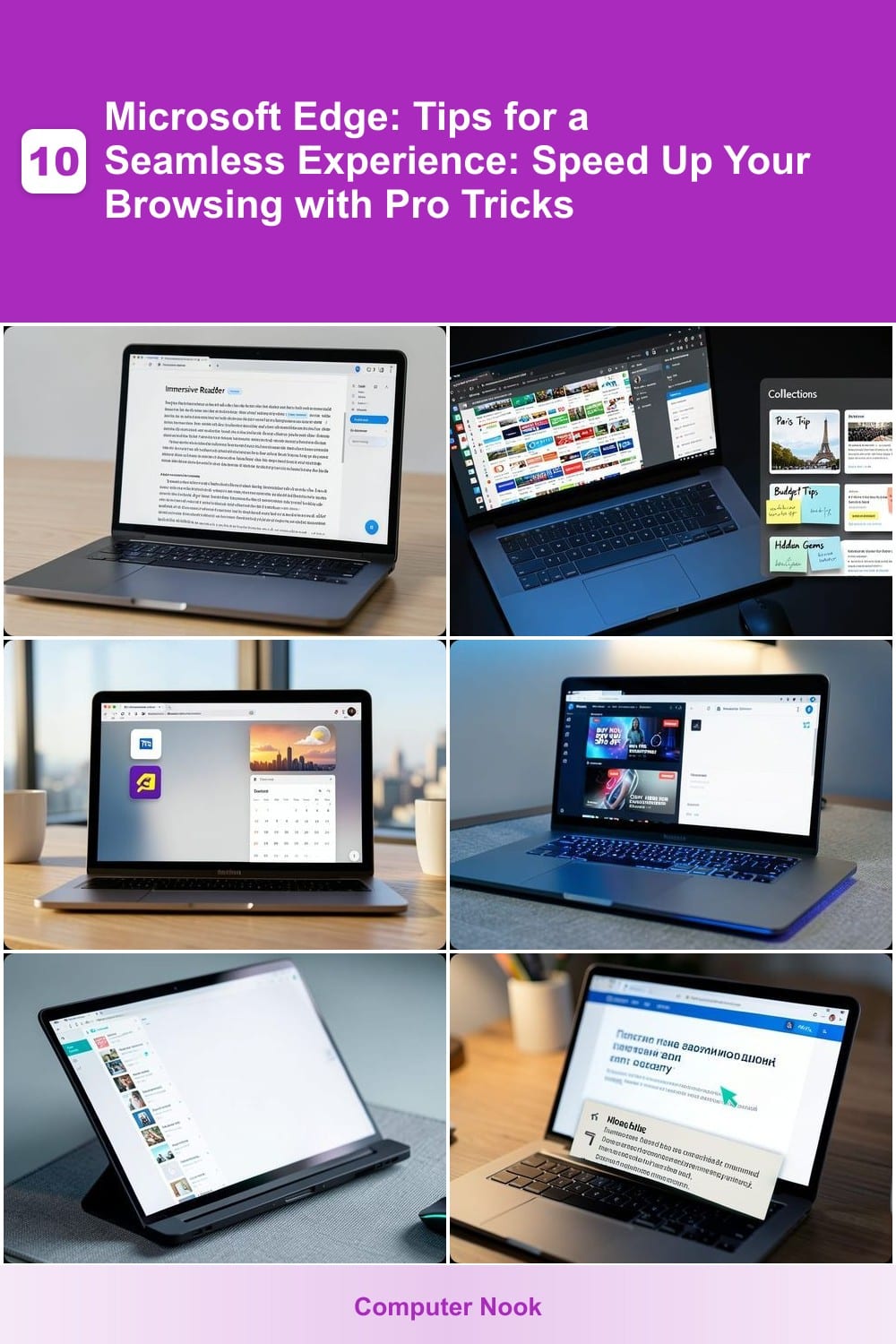
Struggling to focus on long articles or research papers? Microsoft Edge’s Immersive Reader strips away distractions by converting web pages into a text-only, high-contrast mode—perfect for deep reading without ads, links, or clutter.
With 80+ language support and offline functionality, it’s ideal for students, writers, or professionals. Features like dyslexia-friendly fonts, line focus, and adjustable spacing reduce eye strain, while the zero-config setup works instantly on any webpage. Just right-click text, select "Read Aloud," and toggle Immersive Reader from the toolbar.
This tool is a lifesaver for anyone drowning in dense content—whether it’s a legal contract, academic paper, or technical manual. Try it today and reclaim your focus! ✨
Use Collections to Organize Research Like a Pro
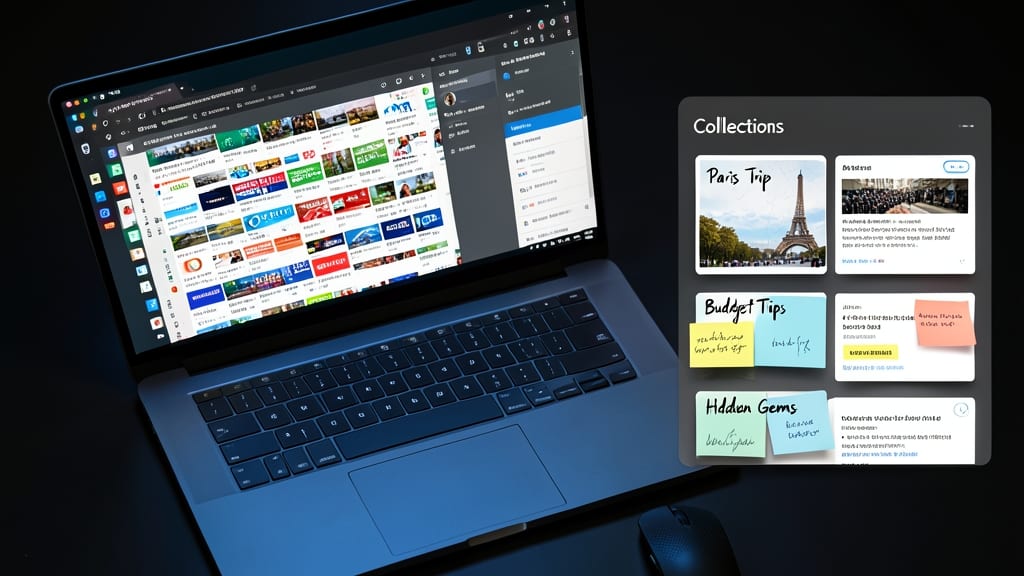
Drowning in a sea of open tabs while researching? Microsoft Edge Collections turns your browser into a dynamic project board, letting you group related tabs, notes, and web content into organized "collections."
With drag-and-drop organization, you can create visual boards for topics like travel planning, academic papers, or work projects—complete with sticky notes, images, and direct links. The cross-device sync keeps your research accessible on phone, tablet, or desktop, while the export-to-Word-or-PDF feature ensures your notes stay intact when you need to share or archive them.
This is the ultimate tool for journalists, students, or researchers who need to juggle multiple sources without losing track. Try it today and bid farewell to tab chaos! ✨
Customize Your Start Page for Maximum Productivity
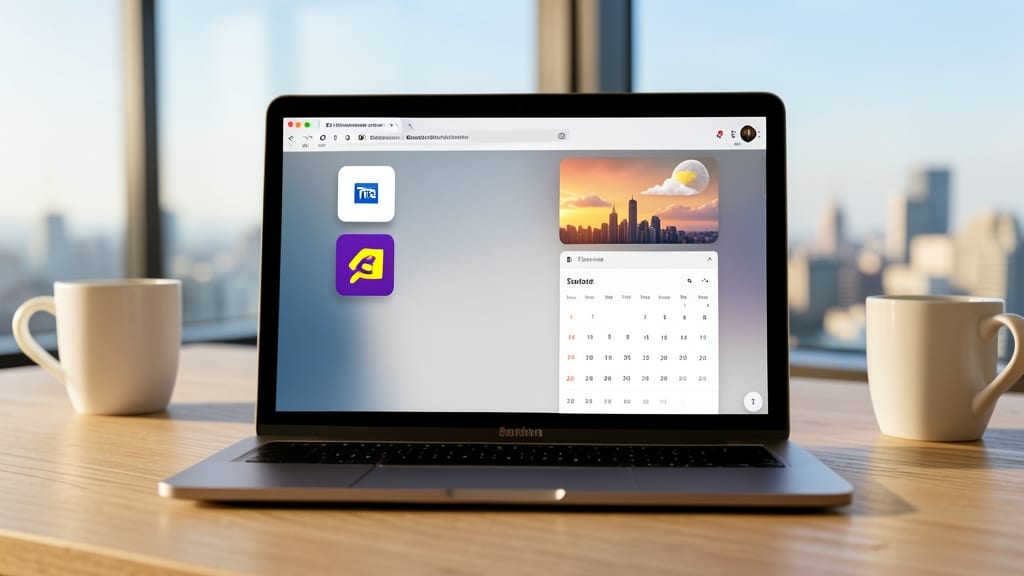
Tired of wasting minutes every morning hunting through tabs for your most-used tools? Microsoft Edge’s customizable Start Page turns your new tab into a productivity powerhouse—no extensions or extra steps required.
Pin your favorite sites (like Trello or Slack) alongside a weather widget, calendar, and news feed for a glanceable dashboard. The built-in Microsoft Bing search bar lets you query directly from your Start Page, while the dark/light mode toggle keeps it eye-friendly. Best of all, it syncs across devices so your setup follows you—whether you’re in the office or working remotely.
This is the perfect solution for busy professionals, freelancers, or students who juggle multiple tools daily. Spend less time searching and more time getting things done. ✨
Block Trackers and Ads with Microsoft Defender Integration
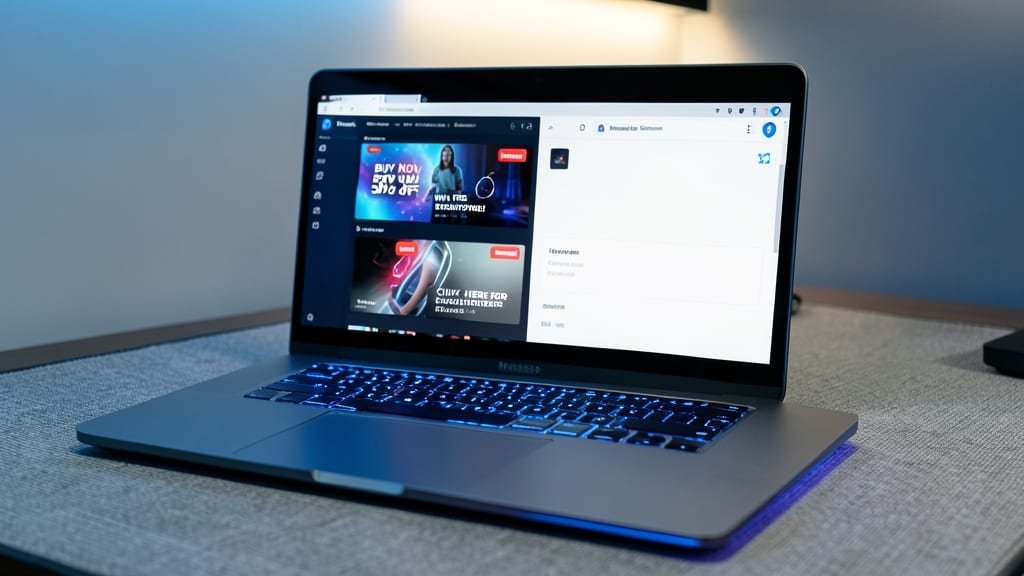
Tired of ads following you across the web like a digital shadow? Microsoft Edge’s Microsoft Defender Integration takes privacy beyond basic ad blocking by automatically blocking third-party trackers that collect your browsing data—without needing extra extensions.
Enable it in Settings > Privacy, search, and services > Tracking prevention, then choose Strict mode to block all trackers or Balanced for a middle ground. This cuts down on slow-loading pages and stops data brokers from piecing together your online habits. It even works with Microsoft Defender for Endpoint for enterprise-level protection.
Perfect for privacy-conscious users, remote workers, or anyone frustrated by ads that never quit. Your browsing stays faster and safer—no trade-offs. ✨
Speed Up Browsing with Vertical Tabs
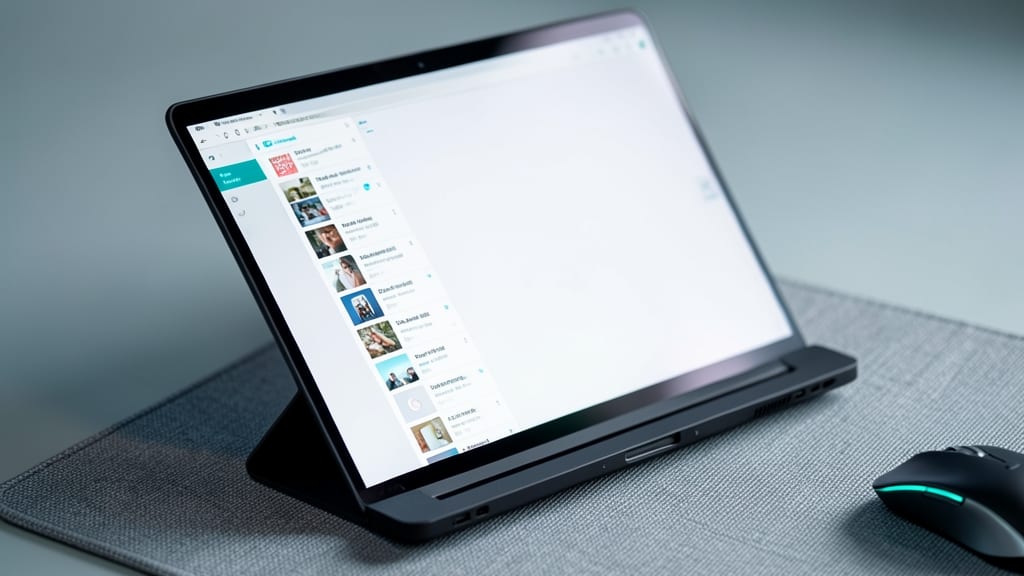
Tired of scrolling through endless horizontal tabs that clutter your screen? Microsoft Edge’s vertical tabs feature transforms multitasking by stacking tabs neatly on the left, freeing up precious workspace while keeping every open tab visible at a glance.
Enable it with a simple toggle in Edge’s settings (or via the three-dot menu → “View” → “Show vertical tabs”). Once active, you’ll gain instant access to all tabs without losing focus on your current page. Perfect for developers juggling code snippets, researchers cross-referencing sources, or anyone drowning in 10+ tabs daily.
This feature shines for users who prioritize screen efficiency—ideal for dual-monitor setups or smaller displays where horizontal tabs feel cramped. Try it and reclaim your digital workspace! ⚡
Translate Web Pages Instantly with AI-Powered Highlights

Struggling to understand a webpage in another language? Microsoft Edge’s AI-powered translation tool doesn’t just convert text—it actively teaches you as you browse. With a single click, unfamiliar terms are highlighted in context and explained in a glossary panel, making complex content instantly accessible.
The feature supports 60+ languages and works offline after initial setup, ensuring seamless use even in remote areas. You can toggle between full-page translation or just the text, and the AI adapts to your learning level by providing definitions, synonyms, and even pronunciation guides. Perfect for travelers, researchers, or anyone tackling non-native content without relying on clunky translation apps.
Language learners will appreciate the contextual learning approach, while professionals navigating international sites benefit from instant clarity. No extensions or extra tools needed—just built right into Edge. 💡
Automate Repetitive Tasks with Edge Workspaces
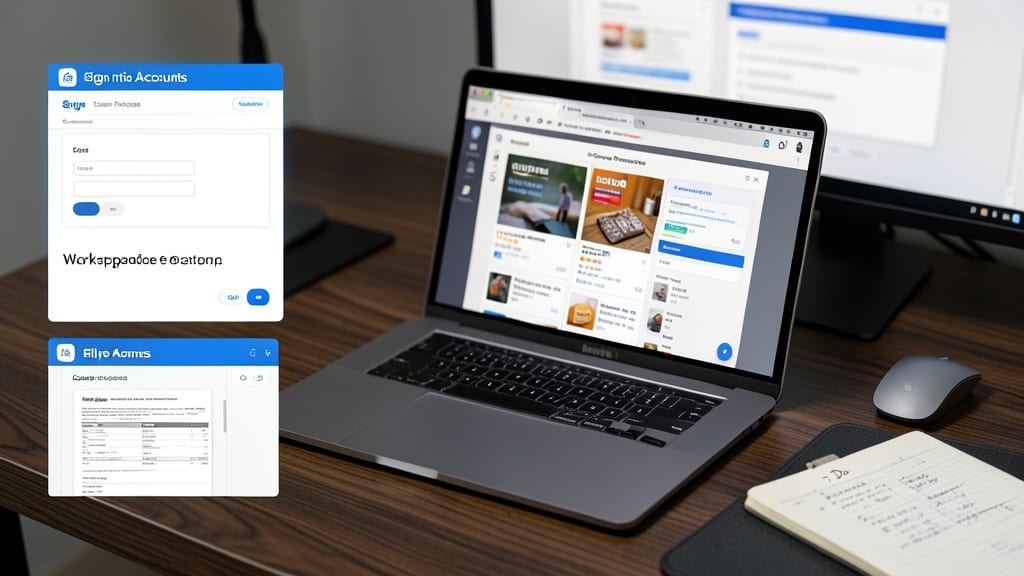
Tired of manually switching between tabs to complete a task? Edge Workspaces transforms your browser into a task manager by grouping related actions—like signing into accounts, filling forms, or comparing products—into reusable workflows. This feature is a game-changer for freelancers or remote workers juggling multiple steps across different sites.
Create a workflow by opening relevant tabs (e.g., invoicing platform, client portal, payment gateway) and saving them as a custom workspace. Need to repeat the process later? Just reopen the workspace, and all tabs and actions load instantly. The step-by-step progress bar ensures you never miss a critical action, while collaborative sharing lets you send workflows to teammates with one click.
Perfect for freelancers managing client projects or remote teams coordinating tasks, Edge Workspaces turns chaotic multitasking into a streamlined, repeatable process. ⚡