
Tip & Trick
Microsoft Teams is the backbone of modern teamwork, but most users only scratch the surface of its capabilities. These 10 pro-level tips and tricks for 2023 will transform how you host meetings, collaborate, and streamline workflows—saving you hours every week.
Customize Meeting Backgrounds with Blur Effects

Working from a home office but worried about revealing sensitive details during video calls? Microsoft Teams’ blur effects let you maintain privacy while keeping a polished, professional appearance—no need for distracting virtual backgrounds.
Enable this feature by clicking the three-dot menu in a meeting, selecting Show background effects, and choosing Blur. The effect smooths out your surroundings, hiding clutter or personal items while keeping you sharply in focus. You can even adjust the blur intensity to strike the perfect balance between professionalism and personal touch. For hybrid teams, this is especially useful when sharing spaces with family or roommates without compromising workplace decorum.
Ideal for remote workers, freelancers, or hybrid teams balancing home and office environments—this simple tweak keeps your focus on the conversation, not your surroundings. 💻
Use Spotlight Mode for Focused Presentations

Struggling to keep your audience engaged when presenting complex slides? Spotlight Mode in Microsoft Teams lets you highlight the speaker while displaying secondary content in the background—ensuring your message stays front and center.
Enable it by clicking the three-dot menu during a meeting, selecting Spotlight, and choosing who to focus on. The blurred background keeps attendees from getting distracted by side content (like speaker notes or reference materials), while the sharp, centered presenter maintains eye contact. This works seamlessly with PowerPoint Live or screen-sharing, making it ideal for trainers or managers leading discussions with visual aids.
Perfect for educators, sales teams, or executives presenting to large groups—this feature ensures your audience stays locked in on you, not their inboxes. 💡
Enable Live Captions for Real-Time Transcription
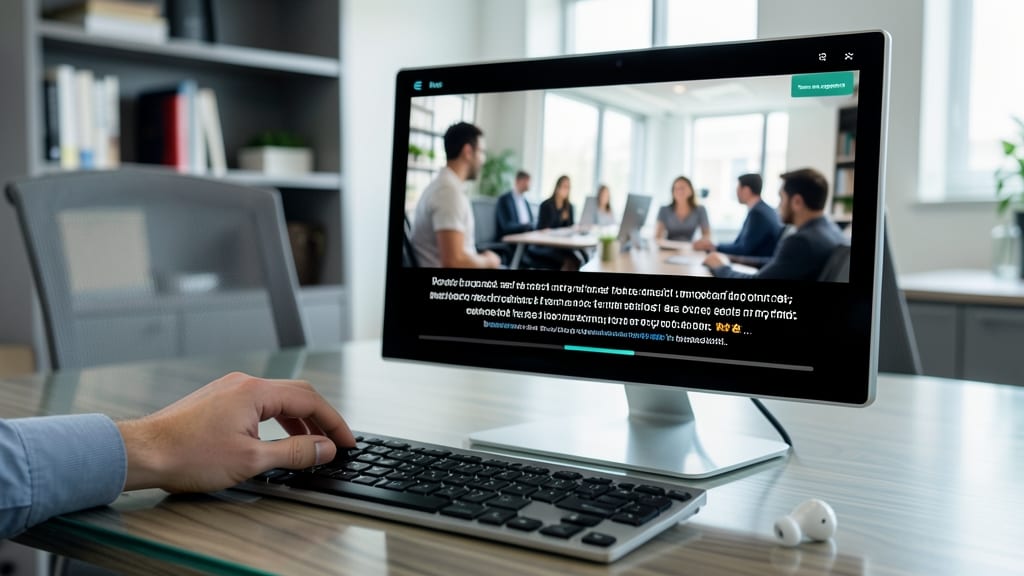
Struggling to keep up with fast-paced meetings or ensure everyone understands key points? Live Captions in Microsoft Teams transforms spoken words into real-time text, making discussions more inclusive and easier to follow.
To enable it, simply click the three dots in a meeting, select Turn on live captions, and choose your language. Captions appear at the bottom of your screen, with 99% accuracy for English and growing support for Spanish, French, and Japanese. This feature is a game-changer for teams with non-native speakers, hard-of-hearing participants, or anyone who prefers reading over listening.
Perfect for educators, global teams, or anyone tired of missing critical details—live captions ensure no one gets left behind. ✨
Schedule Meetings with One-Click Calendar Sync
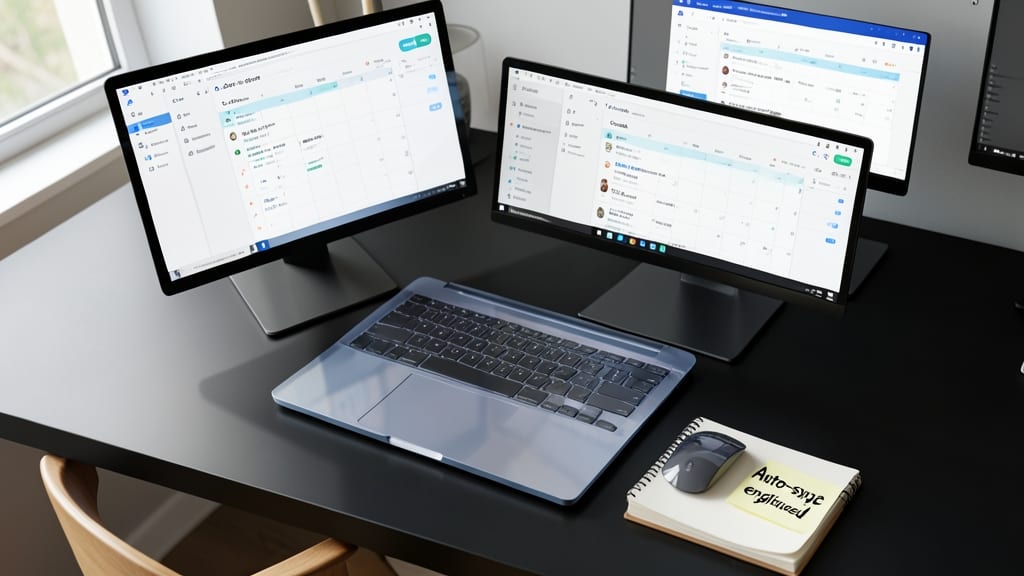
Juggling multiple calendars for meetings? Microsoft Teams now offers one-click calendar sync that automatically pushes your Teams meetings to Outlook or Google Calendar—eliminating the need to manually copy invites.
This feature works seamlessly with both personal and work accounts, ensuring your schedule stays in sync without double-booking. Simply create a meeting in Teams, and it appears instantly in your preferred calendar app. The integration also handles updates—if you reschedule in one app, the change reflects everywhere. Best of all, it’s zero-config for most users, thanks to Microsoft’s built-in connectors.
Busy executives and project managers will love this, as it cuts down on scheduling errors and saves time that would otherwise be spent toggling between apps. ⚡
Create Custom Teams Templates for Repeating Projects
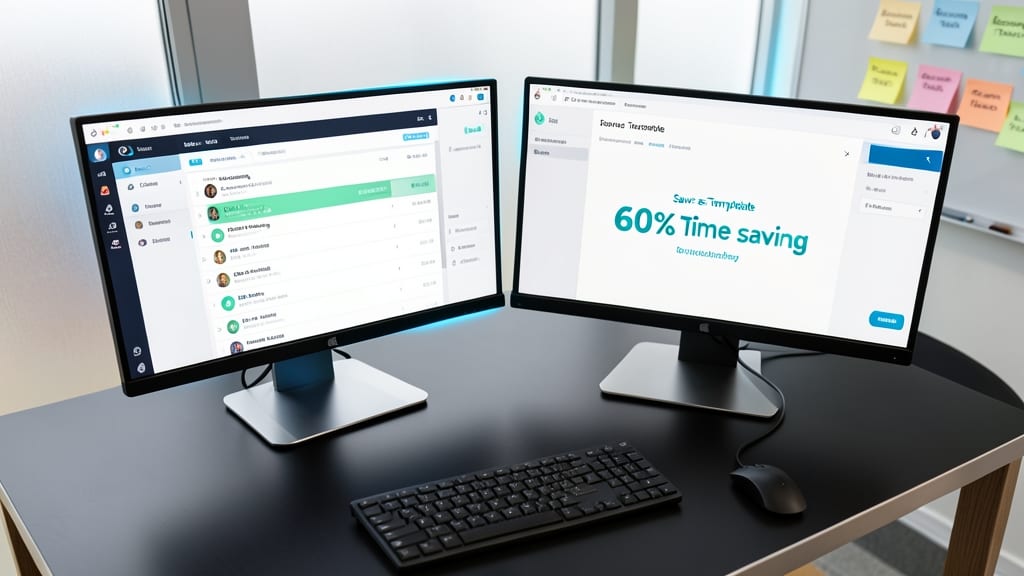
Tired of recreating the same project structure every time? Custom Teams templates let you save and reuse entire workflows—channels, tabs, and permissions—with just a few clicks. Whether it’s HR onboarding or client kickoffs, this feature ensures consistency while cutting setup time by 60%.
Start by creating a base template in your team’s admin settings, then duplicate it for new projects. Add pre-loaded tabs (like approval forms or shared docs) and set default channel permissions. Microsoft even lets you export templates to share across departments or organizations, making collaboration seamless.
Perfect for managers overseeing repetitive processes or IT teams deploying standardized environments. Once configured, your team can launch new projects in minutes—not hours. ✨
Use PowerPoint Live with Laser Pointer Tools
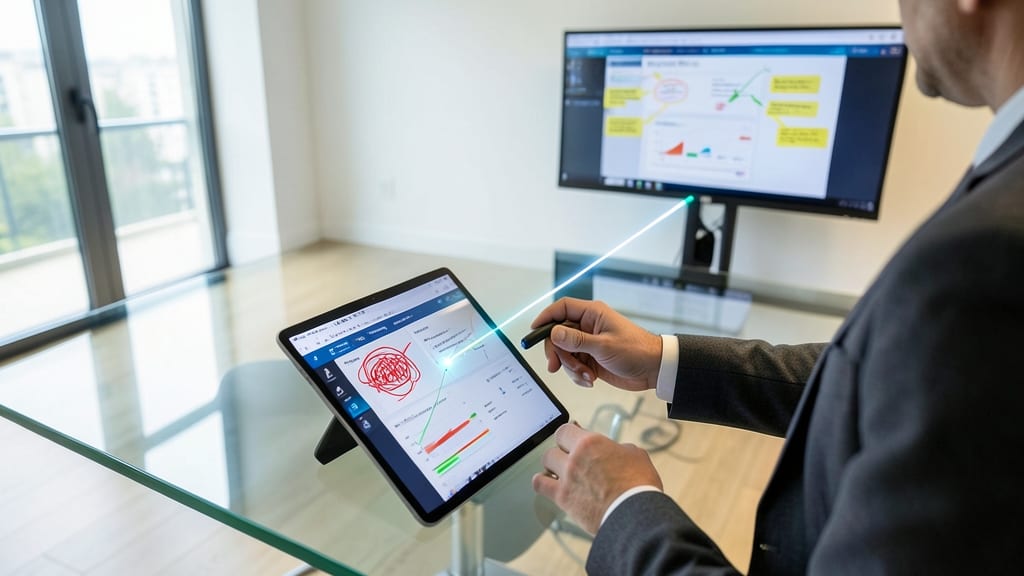
Turn your next presentation into an engaging, interactive experience with PowerPoint Live and laser pointer tools—a game-changer for trainers, educators, or sales teams. This feature lets you annotate slides in real-time, drawing attention to key points while keeping your audience focused on the content.
To get started, simply upload your PowerPoint file to a Teams meeting and select the laser pointer tool from the presentation toolbar. The red dot highlights elements dynamically, while the ink pen lets you sketch directly on slides. Works seamlessly with 4K resolution and supports multi-monitor setups for a polished look. ⚡
Perfect for trainers leading workshops or sales teams walking clients through proposals—this tool makes complex ideas pop without losing audience engagement. 💡
Enable Co-Annotation in Whiteboard Mode

Turn your brainstorming sessions into dynamic, real-time collaborations with Co-Annotation in Whiteboard Mode. This feature lets multiple participants draw, sketch, and annotate simultaneously—no more waiting for turns or losing track of ideas mid-discussion.
Enable it by launching a new meeting, selecting Whiteboard from the content menu, and clicking the pen icon in the toolbar. You’ll unlock infinite canvas space, colorful markers, and virtual sticky notes—all synced across devices. Perfect for mapping workflows, sketching wireframes, or solving complex problems visually without leaving Teams.
Ideal for design teams, product managers, or educators, this tool replaces clunky screen-sharing with seamless, interactive collaboration. No extra apps or plugins needed—just pure, focused creativity. ✨
Set Up Meeting Transcripts Automatically
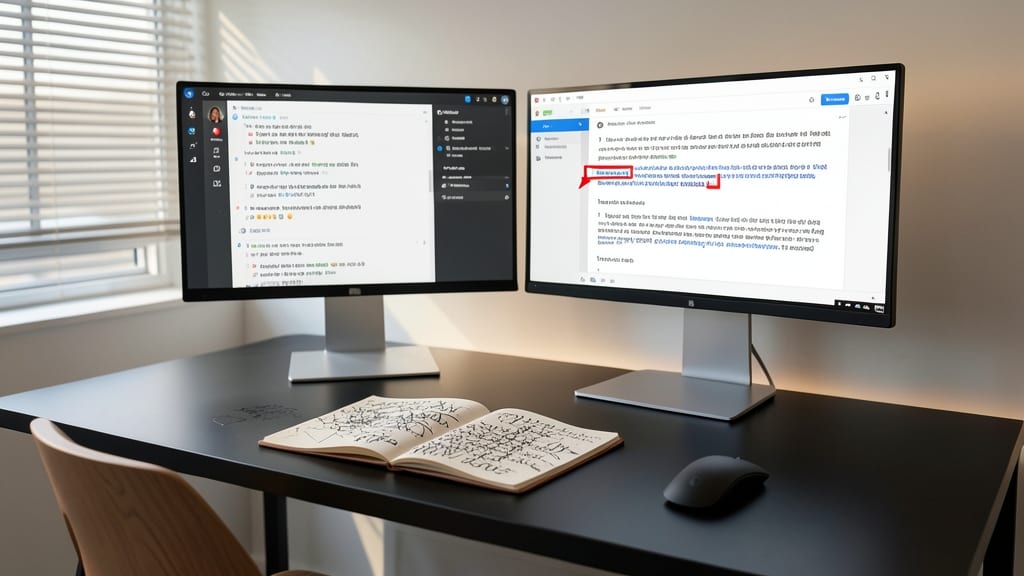
Ever spent 10 minutes scribbling notes during a meeting, only to realize later you missed the critical details? Microsoft Teams’ automatic meeting transcripts solve this by generating verbatim records—searchable, timestamped, and ready to share—without lifting a finger.
To enable this feature, start or join a meeting, then click the three-dot menu in the meeting controls and select "Show transcript". Teams will auto-generate a text file you can export as a Word doc or PDF, complete with speaker labels and timestamps. For legal/compliance teams, this creates an auditable trail of discussions, while sales teams can repurpose transcripts into follow-up emails. The best part? It works in 12 languages and integrates with OneDrive for easy storage.
Perfect for professionals who need documented proof of discussions—whether for client calls, internal audits, or training sessions. No more fragmented notes or forgotten details. ✨
Use the 'Together Mode' for Immersive Team Experiences

Struggling with remote work isolation? Microsoft Teams' Together Mode turns video calls into immersive virtual offices, complete with shared desks and natural eye contact—no more staring at a grid of faces.
Simply enable it during a meeting to transform your layout into a collaborative workspace where participants appear seated side-by-side. The feature works seamlessly with up to 49 participants and supports 4K video quality for crisp visuals. You can even customize the virtual background to match your team's vibe—think "coffee shop" or "modern office."
Perfect for new hires needing to bond with their team, distributed teams craving connection, or companies transitioning to hybrid models. Give it a try and watch engagement soar! ✨
Automate Routine Tasks with Power Automate Flows
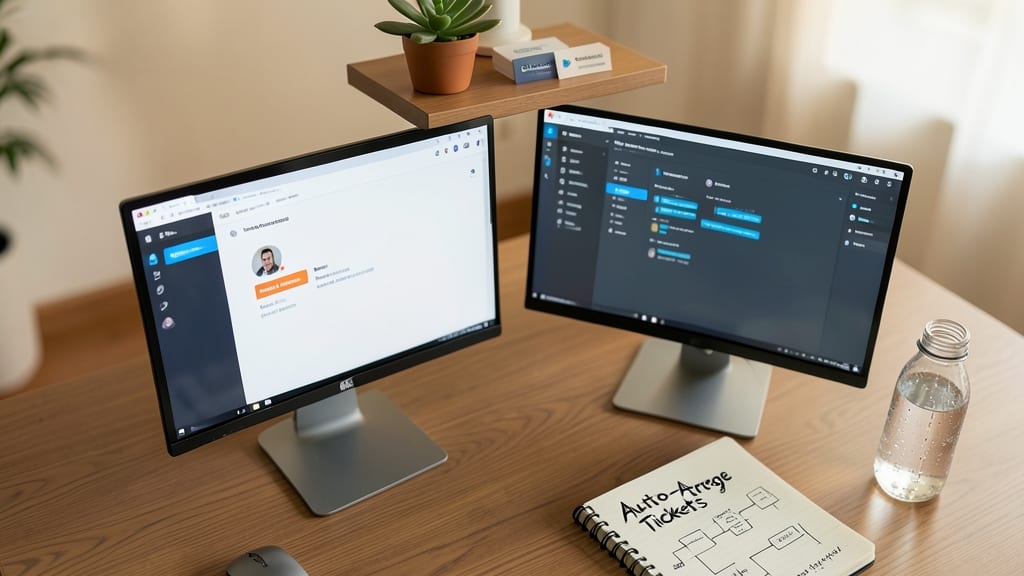
Tired of manually handling repetitive tasks like ticket routing or approval requests? Power Automate Flows bridges Teams with 300+ apps—including SharePoint, Outlook, and Salesforce—to create automated workflows that save hours weekly.
With zero-code templates, you can set up flows like auto-archiving old chat logs or triggering Slack alerts for high-priority Teams messages. The AI Builder even lets you classify support tickets automatically. For IT teams, connect Jira issues to Teams channels instantly, while marketers can auto-approve social media posts based on brand guidelines.
Perfect for teams drowning in manual processes, this integration turns Teams into a command center for cross-app efficiency. 💻